

You are about to start a Codility assessment. You fear outside help. The real question is whether your screen becomes visible to the hiring team.
Yes, Codility can record your screen when Proctoring enables Screen Recording. However, the platform name alone does not show whether your specific assessment records it.
A conditional yes does not reveal the capture boundary. So, check whether the test uses screen recording, snapshots, or combined media. Also check which surface you are asked to share.
The safest device-level answer keeps assistance off the monitored computer. An AI interview assistant can display answers on a separate phone. No answer surface or InterviewFox process exists on that computer.
When Codility can record your screen
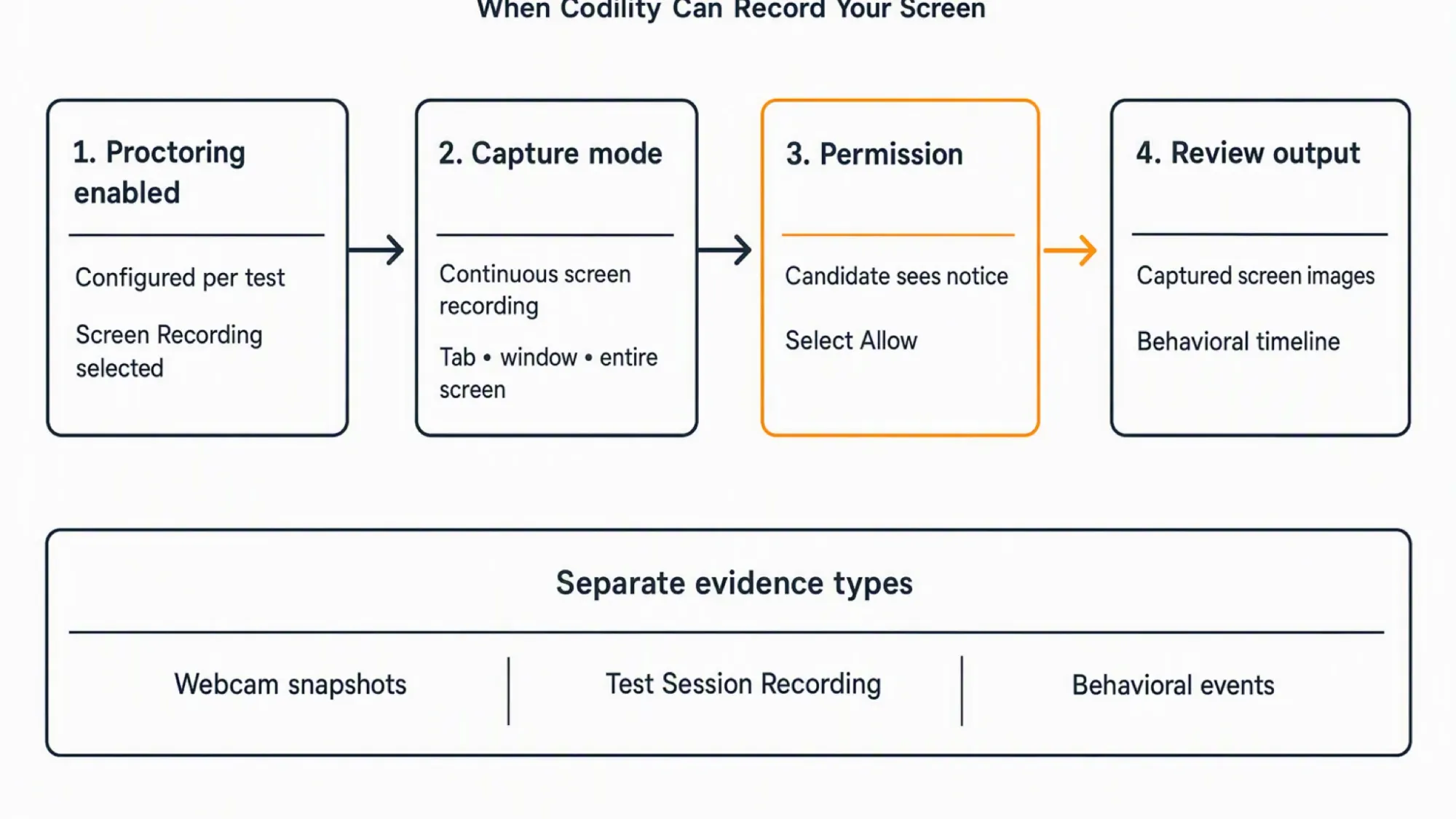
Codility does not establish screen recording for every assessment. Its Proctoring documentation describes the feature as disabled by default. It is configured for each test. The test creator can enable all signals or selected signals.
For wider context, Codility's broader detection model shows how proctoring, behavioral events, and report review fit together.
When Screen Recording is enabled, Codility can continuously capture the candidate's screen. That capability belongs to the Proctoring setup. It does not prove that an unseen assessment has the feature enabled.
Codility's official Proctoring documentation describes per-test configuration, candidate disclosure, and separate behavioral signals.
Therefore, the assessment invitation and setup screen matter more than the platform name. Look for the enabled features and the permission request before you begin.
What screen capture can include
Screen recording, snapshots, and combined session recording are different evidence types. In other words, treating them as one feature creates the wrong expectation about what Codility stores or reviews.
Snapshots are not continuous recording
Codility documents webcam snapshots as a separate capture type. They can occur at intervals or after proctoring events. A documented 30-day period applies to those webcam snapshots. It does not automatically apply to continuous screen recordings.
The evidence does not establish retention for continuous screen recordings. So, do not transfer the snapshot period to another recording mode.
You may select a tab, window, or entire screen
Screen Recording lets the candidate choose a tab, a window, or the entire screen. That choice defines the documented capture surface for the recording mode.
However, the verified evidence does not settle every browser, OS, plan, or multi-monitor rule. It also does not establish what a second monitor shows in every setup.
Screen, webcam, and microphone are separate questions
Test Session Recording is a separate combined mode. Codility describes it as recording the screen, webcam, and microphone throughout the session.
That does not mean every screen recording includes camera or audio. Screen-only capture and combined session recording have different permission and configuration boundaries.
What you see before recording starts
Candidates are notified before progressing when an enabled screen or video feature applies. The documented flow requires an Allow action for the requested permission.
If you decline a required permission, the documented path does not proceed with that session. Still, the verified evidence does not establish one fixed retry, failure, or invitation outcome for every mode.
Do not assume that a permission prompt reveals every detail. Instead, check the feature name, the selected tab, window, or screen, and the assessment instructions before accepting it.
What Codility tracks without screen recording
Codility documents behavioral events separately from screen footage. When enabled, these can include tab switching, copy and paste attempts, task-description copying, and unusually short task duration.
Typing Pattern Detection is a separate post-submission analysis. It is not live screen recording or live keystroke logging. The documented feature creates a contextual risk signal. Its flag should not stand alone as an automatic rejection.
Device Integrity for Screen is another separate mechanism. It checks for known cheating tools on the assessment computer when the employer enables the Preview feature. Its documentation says it does not record the screen or monitor keystrokes.
That device check has its own limits. The documented app supports macOS and Windows. Linux is unsupported for that feature. Its no-screen-recording boundary applies to Device Integrity, not to Proctoring's separate recording modes.
These distinctions explain why you may see monitoring language without seeing a screen recording. A logged event is not itself proof that Codility captured your screen or made a cheating decision.
What the employer can review afterward
Candidate Reports can show screen images, behavior timelines, and integrity-risk data. The report also supports review controls, PDF export, and report or session sharing controls in the documented context.
Codility's Candidate Report documentation describes the report timeline and the review surfaces available to the hiring team.
The available evidence does not establish universal employer access to every recording. It also does not establish a universal retention rule for continuous screen recordings.
Codility's documentation separates a reported signal from the hiring decision. Hiring teams review the report and decide. Behavioral signals are not described as automatic rejection on their own.
What to check before starting
Use the assessment setup as your source of truth for that specific test:
- First, read the session introduction and note every enabled feature.
- Next, check whether it names Screen Recording, Proctoring Snapshots, or Test Session Recording.
- Then, read the permission request and confirm whether it asks for a tab, window, or entire screen.
- Also, check the assessment policy before using another application, monitor, or device.
- Finally, ask the test owner about any unclear prompt or capture requirement before starting.
This checklist verifies exposure. It does not bypass monitoring or predict what an employer will decide.
If your concern is practice, not capture, the InterviewFox Prep Agent can help with your resume. It can also provide a prep plan and mock-interview support through WhatsApp or SMS.

Answers On Your Phone, Not Your Shared Screen
Skip the risky invisible-overlay tricks. Our dual-device mode keeps answers on your phone, never on the screen you're sharing or recording. Nothing for a platform or interviewer to catch, because there's nothing on the shared screen to find.
Get started. It's freeLoved by 100,000+ candidates
Keeping assistance off the captured computer
Screen recording exposes the answer surface on a shared or inspected device. A separate device moves it elsewhere.
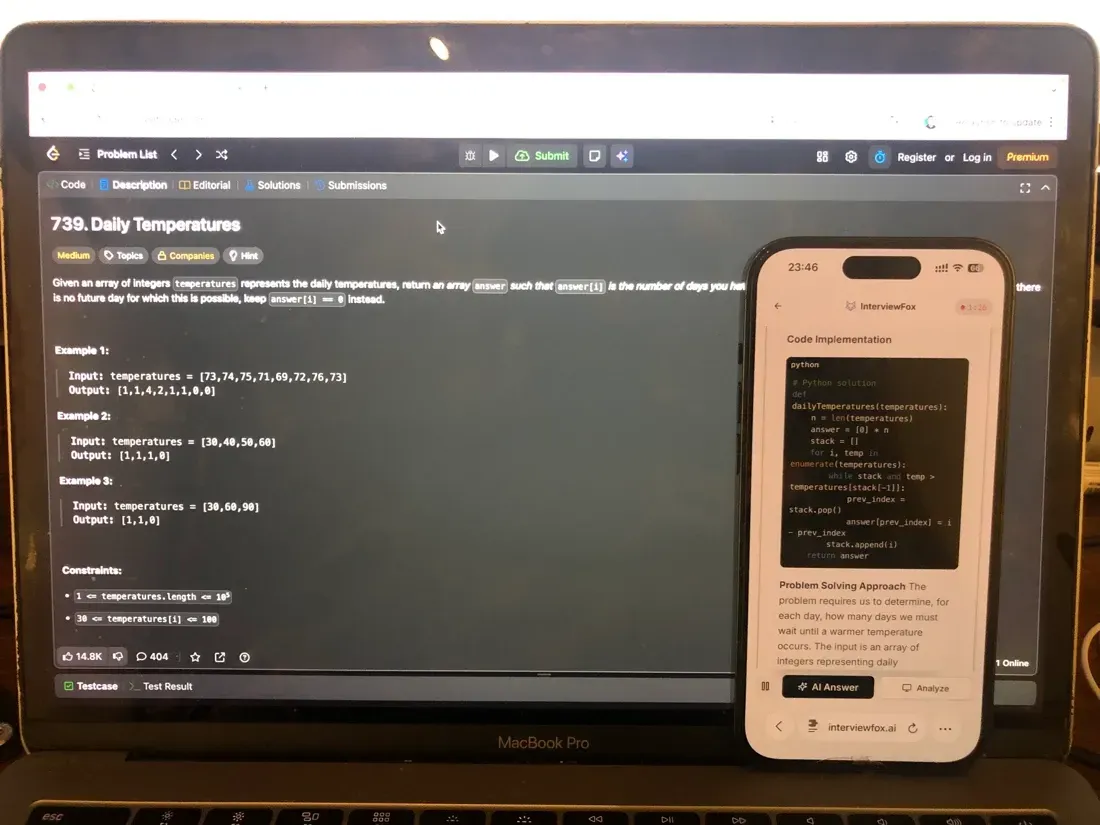
InterviewFox's dual-device mode shows answers on the phone. Meanwhile, the monitored computer has no answer surface, overlay, or InterviewFox process. So, software on that computer cannot detect this mode.
However, this setup does not change enabled features or make the assessment unrecorded. The answer stays off the recorded or inspected desktop.
Also, place the phone near the laptop camera or in your forward sightline. Avoid looking down or sideways. A phone in your lap or far away can cause this.
Answers On Your Phone, Not Your Shared Screen
Skip the risky invisible-overlay tricks. Our dual-device mode keeps answers on your phone, never on the screen you're sharing or recording. Nothing for a platform or interviewer to catch, because there's nothing on the shared screen to find.
Get started. It's freeLoved by 100,000+ candidates
For a Codility assessment, a dual device AI interview helper keeps answers and its process on the phone.
What else does Codility monitor?
These checks are separate from continuous screen recording. Their use still depends on the features enabled for the specific assessment.
- Behavioral events: Codility can record events such as tab switching, copy and paste attempts, task-description copying, and unusually short task duration. These events do not by themselves prove screen capture or automatic rejection.
- Webcam snapshots: Codility can take webcam snapshots at intervals or after proctoring events. The documented 30-day period applies to these snapshots, not to continuous screen video.
- Post-submission typing pattern: Typing Pattern Detection analyzes typing sequence and structure after submission. It is not live keystroke logging or screen video, and its flag should not stand alone as an automatic rejection.
- Device Integrity: When enabled as a Preview feature, Device Integrity for Screen checks for known cheating tools on the assessment computer. Its documentation says it does not record the screen or monitor keystrokes. The feature supports macOS and Windows, while Linux is unsupported.
FAQ
Does Codility record every test?
No universal conclusion is supported. Codility can record a screen when the relevant Proctoring configuration is enabled. The platform name alone does not establish the settings for a particular assessment.
Does Codility record webcam or microphone with the screen?
A separate Test Session Recording mode can include the screen, webcam, and microphone. Screen Recording alone does not establish that camera or audio capture is enabled.
Can Codility see another monitor?
The documented capture choices are a tab, window, or entire screen. The available evidence does not resolve every multi-monitor or second-monitor configuration.
What happens if I do not allow permission?
The documented enabled path cannot proceed with that session without the required permission. The evidence does not establish one universal retry, failure, or invitation outcome for every mode.
Does Codility track tab switching without screen recording?
Behavioral events are documented separately from screen footage. Whether they apply to your assessment still depends on the features enabled for that test.
Does Codility record every code edit or typing history?
Typing Pattern Detection is described as post-submission analysis. It is not live screen recording or live keystroke logging.