

You're about to open a CoderPad assessment. The real question isn't only whether it records. It's whether the help you quietly use will get exposed.
Yes, but only in specific formats. CoderPad records coding activity as Code Playback in take-home Screen tests. Live interviews log an in-pad timeline, not a desktop video.
A recording plus a human reviewer is the true exposure path. Anything open on your shared screen lands in the same frame.
Dual Device Mode is the safest setup for the monitored-computer path. It keeps answers on your phone, where CoderPad's recording cannot reach them. An AI interview assistant makes that separation simple.
What CoderPad Actually Records
"Record" is not one mechanism on CoderPad. There are three distinct things it can capture, and they attach to different products and settings.
Screen recording in take-home tests (Code Playback)
For programming, game, and free-text questions in CoderPad Screen, the platform records all your coding activity during the test. CoderPad refers to this as Code Playback in its candidate docs, a replay employers watch after the fact.
This is the case where the answer to "does CoderPad record my screen" is a clear yes. It is scoped to Screen-format assessments, not every session.
The live-interview activity timeline (not a desktop video)
In a live interview, CoderPad does not record your whole desktop.
Instead it captures an in-pad timeline. That includes the code you write and edit, runs, cursor movement, paste events, and IDE-exit signals. Think of it as a structured event log inside CoderPad, not a video of your screen.
That distinction matters. A full-screen video would show everything on your monitor: other windows, notes, a second device reflected in a webcam. The live-interview timeline shows only what occurred inside CoderPad itself.
Webcam and Microphone Snapshots, Not Video or Audio
When webcam proctoring is enabled, CoderPad captures periodic image snapshots. It does not record webcam video and does not record audio. Snapshots require your consent, and CoderPad documents a maximum 90-day retention.
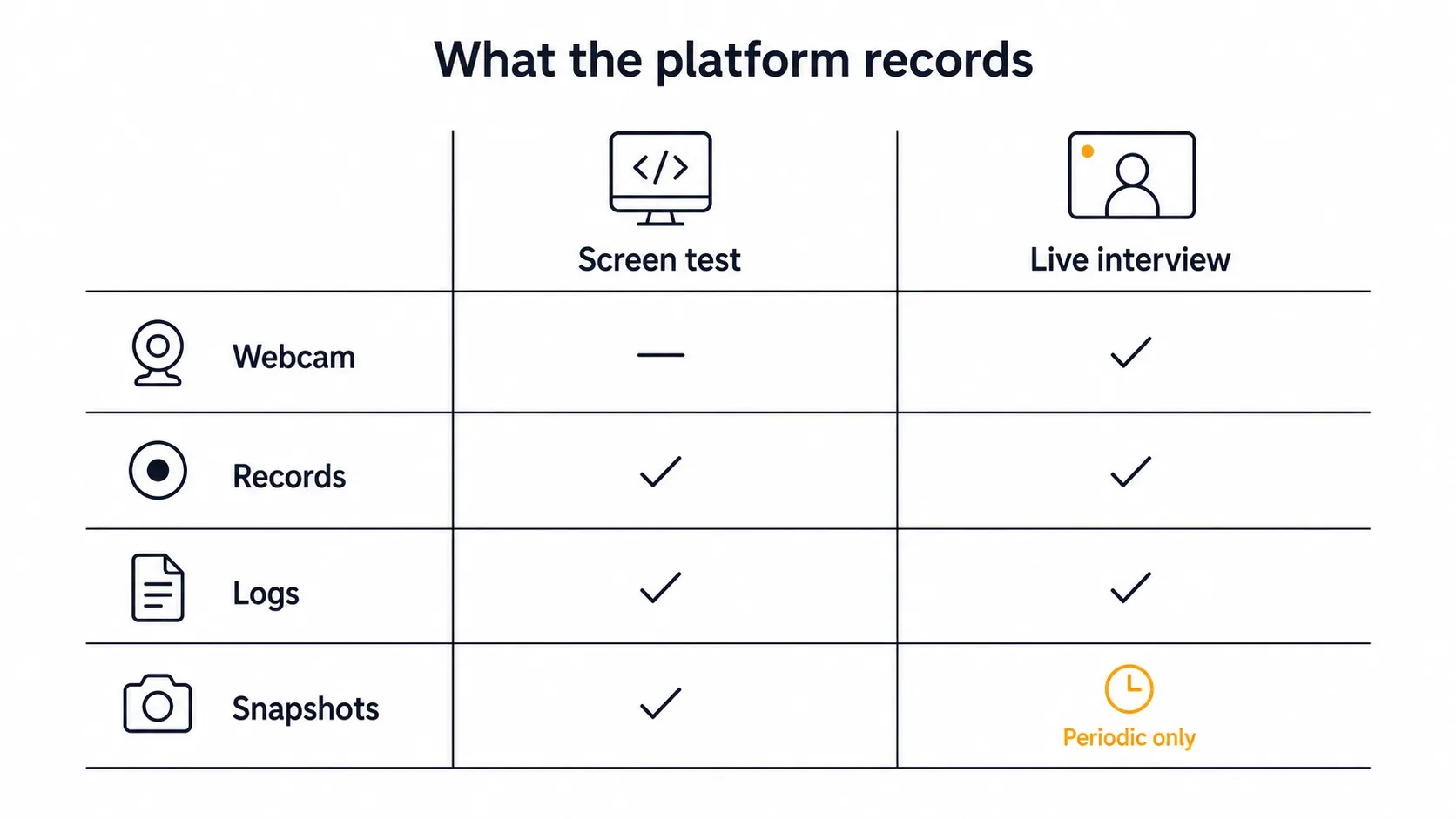
Live Interview vs. Take-Home Screen Test
Most candidates don't know which format they're in, and the recording differs sharply between them.
- Take-home Screen test. Code Playback records your coding activity end to end. If you share your full screen by choice, the reviewer sees whatever was on it. Otherwise only the in-pad coding is captured. Full-screen Screen mode also alerts the employer if you switch monitors or leave the test window for more than about ten seconds.
- Live interview. The platform logs the in-pad activity timeline described above. Any video or audio comes from an interviewer-controlled call or a separately configured setting, not from a CoderPad desktop recorder. Screen sharing happens only if you're asked to start it.
The practical test: if your invitation says "Screen" or "take-home," assume your coding is being recorded. If it says "live interview" or "pairing session," assume an in-pad activity log. The permission prompts and product name in your invitation tell you which world you're in.
Who Sees the Recording, and What They Do With It
The employer, not CoderPad, decides whether each measure is on. Every anti-cheat control is an employer-toggleable setting, so your experience varies by company and by role.
When a recording or flag exists, a human reviewer is the one who acts on it:
- Code Playback is watched by the hiring team or a reviewer who evaluates your solution after the test.
- Activity flags (paste spikes, IDE exits, monitor switches) are decision aids. They route a response to closer review; they do not by themselves fail or disqualify you.
- Webcam snapshots are used for identity confirmation and anomaly checks, subject to the consent and 90-day retention described above.
Retention follows CoderPad's policy and the employer's own configuration. The key point is that nothing here is an autonomous "this is AI, auto-reject" system. A person weighs the signal, and the signal is whatever the enabled measures captured.
What CoderPad Can't See on Your Other Screen
This is where residual paranoia usually lives, so answer it directly. CoderPad can tell that you switched away from the test. A full-screen exit or monitor switch trips an alert. But it cannot see what was on the other monitor.
There is no webcam video and no audio, so it has no recording of your room. And nothing outside the CoderPad environment is captured unless you choose to share your screen.
In other words, the monitored surface is the CoderPad session itself. A second monitor, a phone, or notes off to the side are not part of what CoderPad records. The only way they enter the picture is if you put them on the shared or recorded surface yourself.
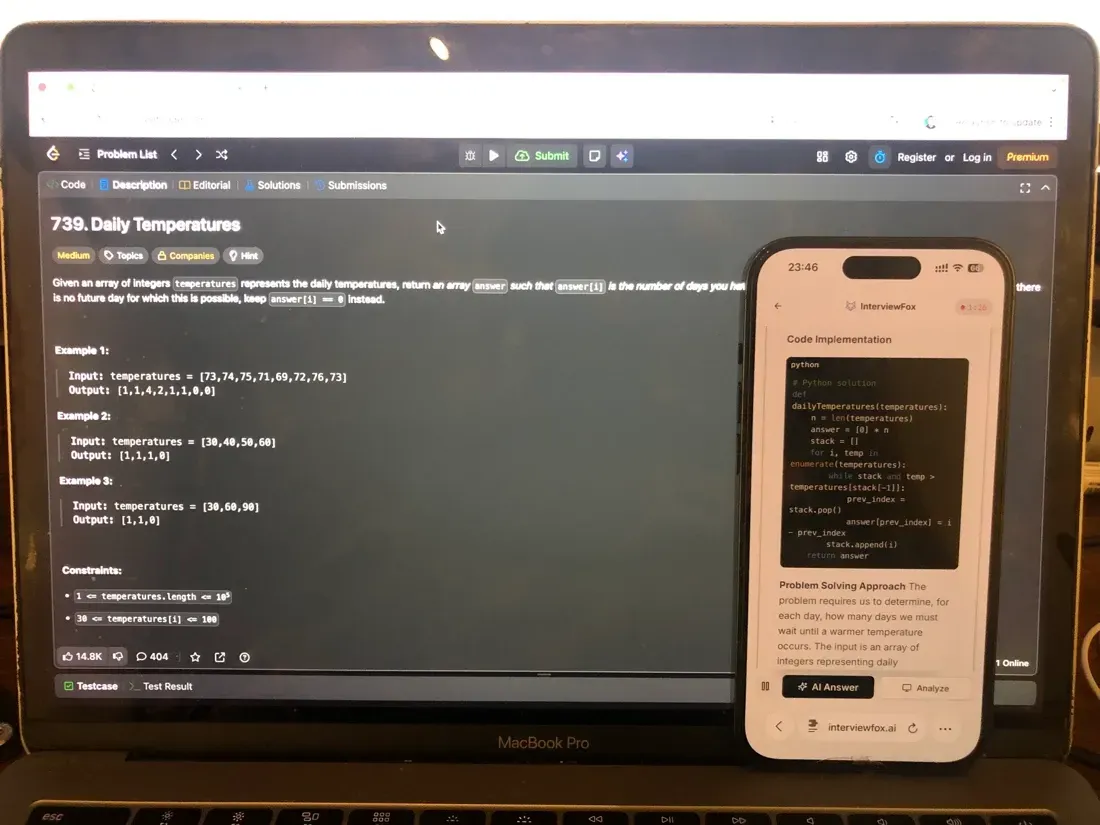
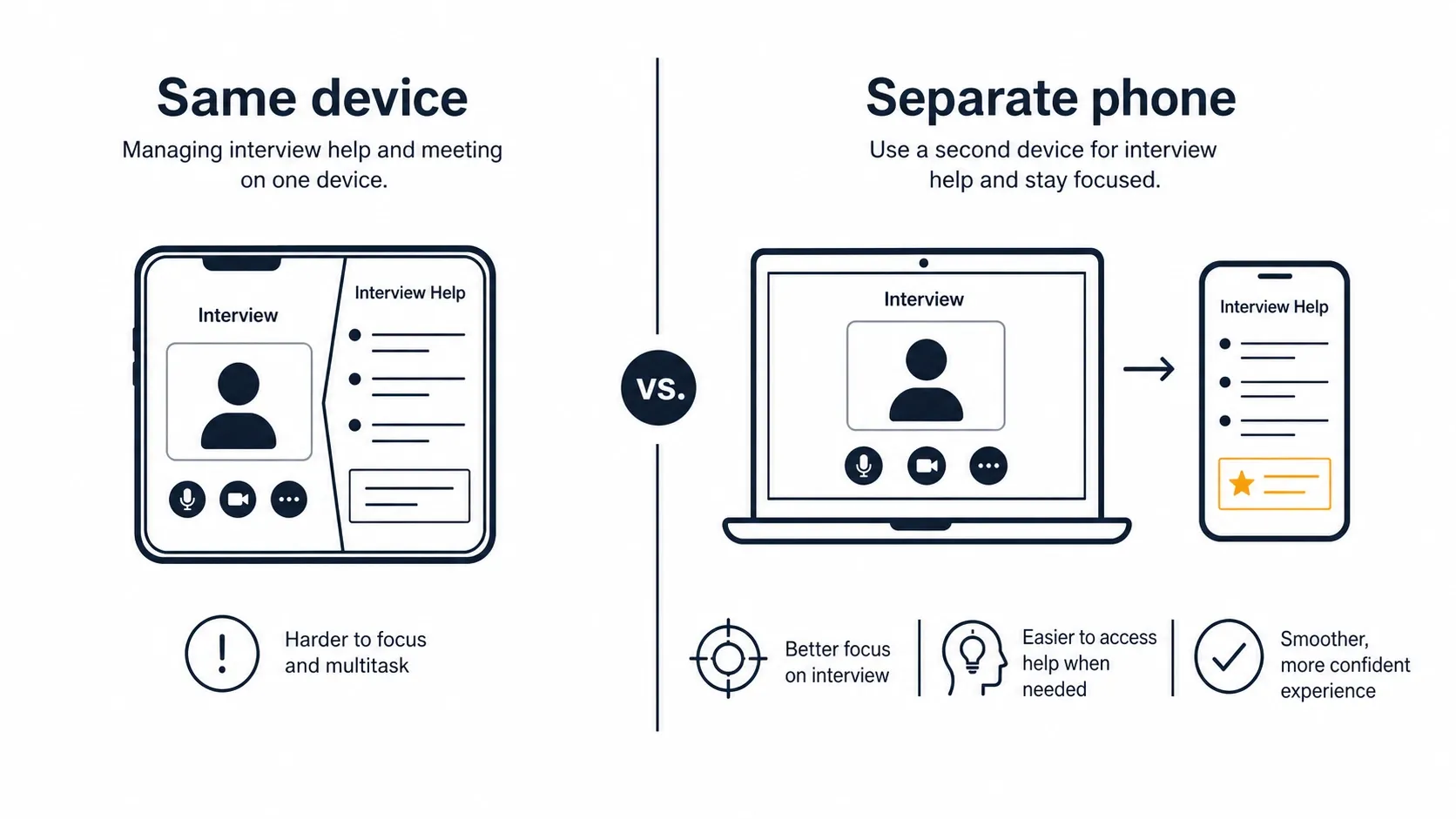
When the answer displays on a separate phone instead of your laptop, it never enters the screen CoderPad records.
Software on the monitored interview computer cannot detect InterviewFox's dual-device mode. The answer and the InterviewFox process stay on the phone. No answer surface, overlay. or InterviewFox process runs on that machine, so its monitoring has nothing to catch. That removes the same-screen exposure path.
Two honest boundaries sit beside that conclusion, and they are different questions:
- Your webcam snapshots and human review still apply. A reviewer can notice eye movement toward a second device or a flat, read-aloud cadence. Because the phone and the interview computer are separate devices, you can position them independently. Rest the phone near the laptop camera or within your natural forward sightline. That avoids the conspicuous off-screen glance a poorly placed second device creates.
- Human review still applies. Authenticity, coherence, and the assessment rules you accepted are judged by people. Dual-device mode changes the software-exposure path. It does not change who reviews the interview or what the employer's rules require.
A dual device AI interview assistant keeps the answer on your phone. No InterviewFox process runs on the assessed computer.

Answers On Your Phone, Not Your Shared Screen
Skip the risky invisible-overlay tricks. Our dual-device mode keeps answers on your phone, never on the screen you're sharing or recording. Nothing for a platform or interviewer to catch, because there's nothing on the shared screen to find.
Get started. It's freeLoved by 100,000+ candidates
If You Need Help During the Session
The sturdier risk to manage is usually preparation, not detection. Candidates reach for help because they don't know the questions or haven't practiced thinking and typing under a timer. Build that baseline first, and the temptation to cheat drops.
If you do want real-time support, keep it on a device the assessment can't see. InterviewFox's dual-device mode shows answers on your phone, so the monitored computer never renders them. That is a structural choice, not a setting to hide. It's the difference between help that stays private and help that lands on the recorded surface.
For the work before the test opens, InterviewFox's Prep Agent turns your resume and job description into a practice workflow. It runs over WhatsApp or SMS, so the answers in the room are genuinely yours.
Prepare Once, Walk In Ready
The durable fix isn't a cleverer hiding trick, it's going in prepared. Our Prep Agent reviews your resume, builds a study plan, and runs mock interviews with you over WhatsApp or SMS, so you rehearse the content before it counts.
Get started. It's freeLoved by 100,000+ candidates
FAQ
Does CoderPad detect AI tools or cheating software? Not through a published, dedicated AI-answer detector. Its signals are behavioral. These include plagiarism and similarity checks, paste spikes, performance anomalies, geolocation, and activity flags like IDE exits. A reviewer decides what those signals mean.
How long is the recording kept. and what are my privacy. and consent rights? Webcam snapshots are capped at a 90-day maximum retention under CoderPad's documentation and require your consent. Code Playback and activity-log retention follow CoderPad's policy and the employer's configuration. The employer typically controls the recording and any deletion request.
Can CoderPad see my other tabs or my second monitor? It can detect that you left the test environment. A full-screen exit or monitor switch after roughly ten seconds trips an alert. But it does not capture the content of other tabs or monitors. What's outside the CoderPad session stays private unless you screen-share it yourself.