

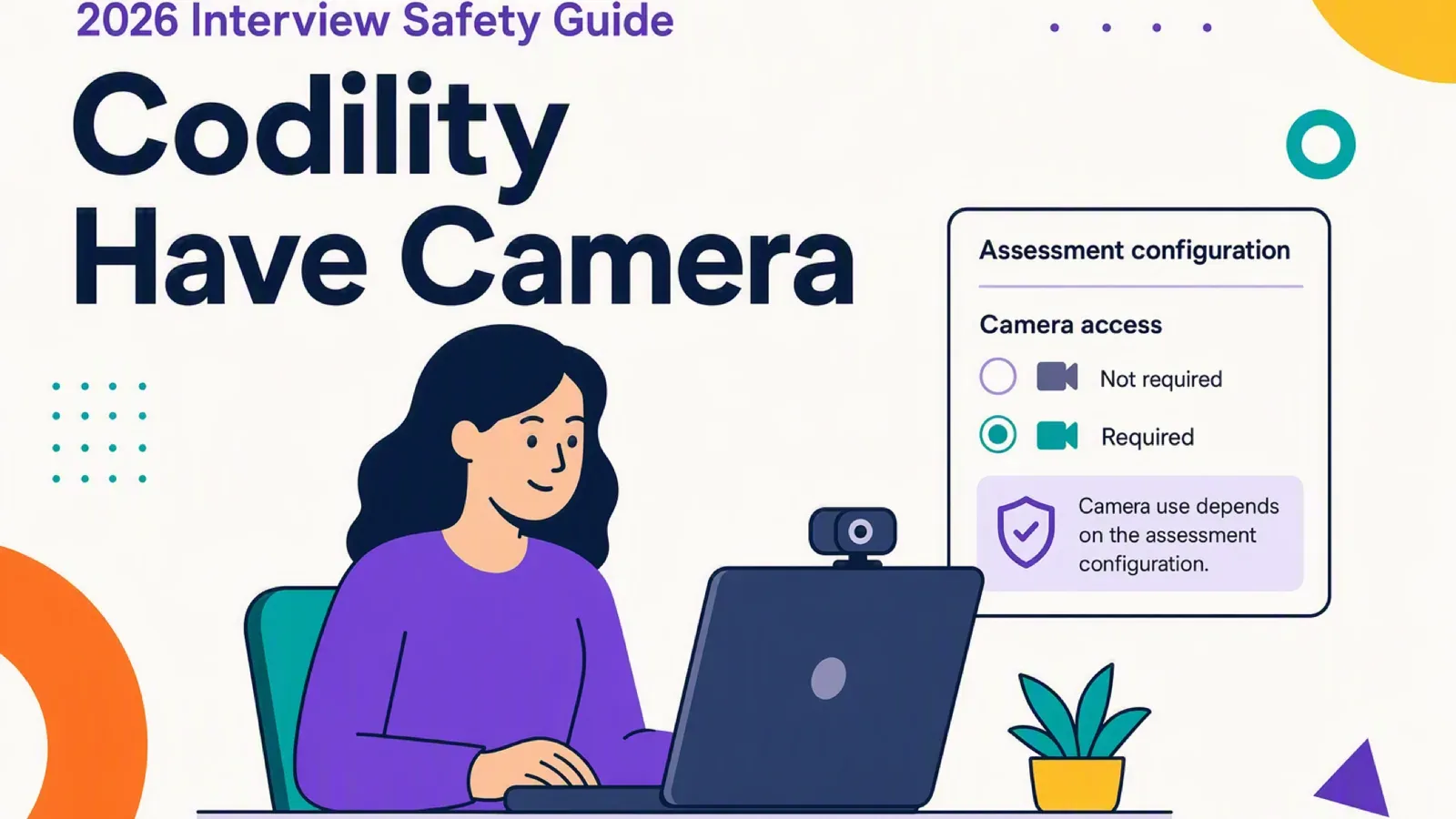
You are about to start a Codility assessment and may be weighing outside help. You want to know whether camera use could expose it. In plain terms, does codility have camera for this test?
Yes, Codility can use a camera, but not every test does. The testing team's setup decides whether your test requests access.
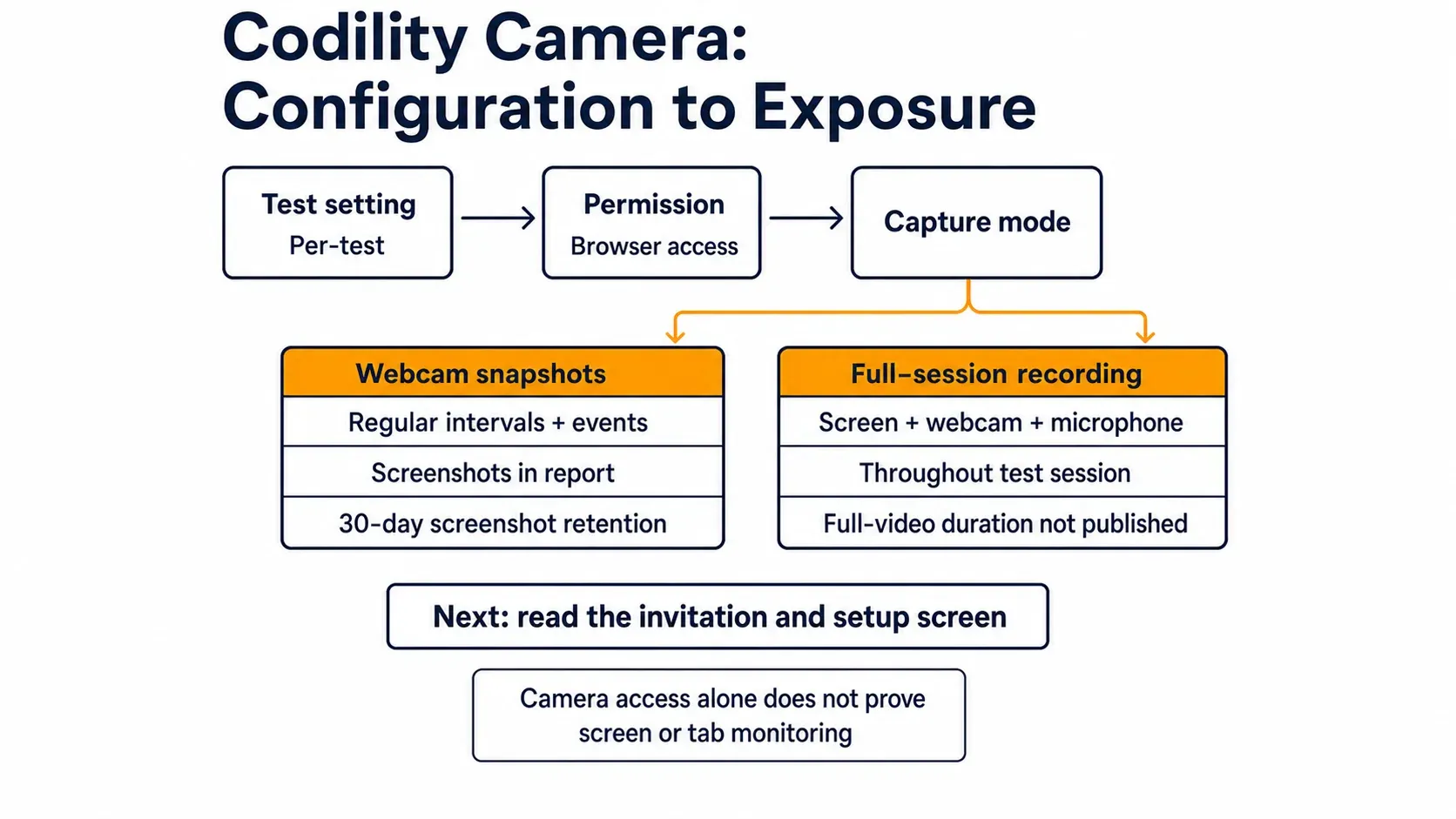
Camera access does not prove screen capture or tab monitoring. Those signals are separate. Full-session recording can still capture screen, webcam, and microphone after consent.
Screen recording can expose same-device help. Dual Device Mode keeps answers off the monitored computer. Answers stay on your phone. Software running on the monitored interview computer cannot detect the mode. An AI interview assistant fits this separate-device path.
When Codility uses your camera
Codility camera access is a feature, not a universal requirement. The testing team chooses the relevant assessment settings.
Test configuration controls the requirement
Codility documents Proctoring as a per-test setting for Screen assessments. It is disabled by default in that documented flow.
The testing team may enable all behavioral signals or only selected signals. Candidate-facing guidance also says tracking depends on testing-team policy.
Therefore, another candidate's camera experience may not match yours. The invitation and setup flow for your assessment control the immediate answer.
Codility's behavioral-events guidance explains this per-test configuration and signal selection.
Permission is part of the start flow
Enabled video recording is disclosed before the assessment proceeds. The setup screen identifies the recording request and asks for the required browser permissions.
Full-session Video Proctoring requires your opt-in before the session starts. If you decline, Codility blocks that session path but leaves the invitation available later.
A missing permission can create the same practical result as a missing camera. The assessment may not start until the enabled feature receives the access it needs.
Device and browser conditions
A camera-enabled assessment may require a connected or installed webcam. Codility's candidate guidance allows switching devices or contacting the test administrator when no webcam is available.
Do not treat the general assessment browser list as a universal camera matrix. Recording and screenshot features can have narrower support rules.
A reviewed Codility support page lists mobile phones and tablets as unsupported for the relevant assessment flow. However, this undated page is only a scoped support note, not a universal current rule. Therefore, your invitation still controls the exact device requirement.
What Codility camera features capture
The word camera can describe snapshots or a broader recorded session. Those modes have different scopes.
Webcam snapshot mode
Codility documents webcam snapshots at regular intervals and when proctoring events occur. The source does not publish a numerical interval.
Webcam screenshots appear in the candidate report. Codility documents a 30-day retention period for those screenshots.
That period applies to snapshots. It does not establish a retention period for full-session video.
Full-session recording mode
Test Session Recording can record the screen, webcam, and microphone throughout the test session. The mode remains separate from interval-based snapshots.
Video Proctoring is configured per test. Its recording request appears before the session, and candidate opt-in is required.
The fetched Codility sources do not publish how long full-session video remains available. Do not transfer the 30-day snapshot period to that video.
Screen and camera are not one automatic bundle
Codility separately documents screen sharing for a tab, window, or entire screen. Camera access therefore does not establish that screen capture is enabled.
The same distinction applies to tab switching and other behavioral events. A test's complete configuration remains specific to that assessment.
What camera access does not establish by itself
Camera permission answers one configuration question. It does not answer every monitoring or review question.
Camera versus other behavioral signals
Codility lists tab switching, copy-paste, task-description copying, short task duration, and typing patterns as separate signals.
Their availability depends on the selected proctoring or feature scope. Camera permission alone does not prove those signals are enabled.
A signal is not the same as a final decision
Codility describes behavioral signals as report inputs for recruitment-team review. A signal alone is not documented as automatic proof of cheating.
Typing Pattern Detection also carries a specific boundary. Codility says that preview signal should not support automatic rejection by itself.
Codility says recruitment teams should review reports and make informed determinations. The available documentation does not establish an individual employer's later outcome.
Camera field of view remains bounded
The fetched primary sources do not define whether the camera sees a phone, second monitor, or off-screen activity.
That is an evidence gap, not a reason to claim either visibility or exclusion. The documented answer stops at the camera features and scopes described above.
Full-session recording creates a separate same-computer exposure path. It can place the screen, webcam, and microphone inside one recorded session after consent.
InterviewFox's dual-device mode keeps answers on a separate phone. No answer surface, overlay, or InterviewFox process exists on the monitored computer.
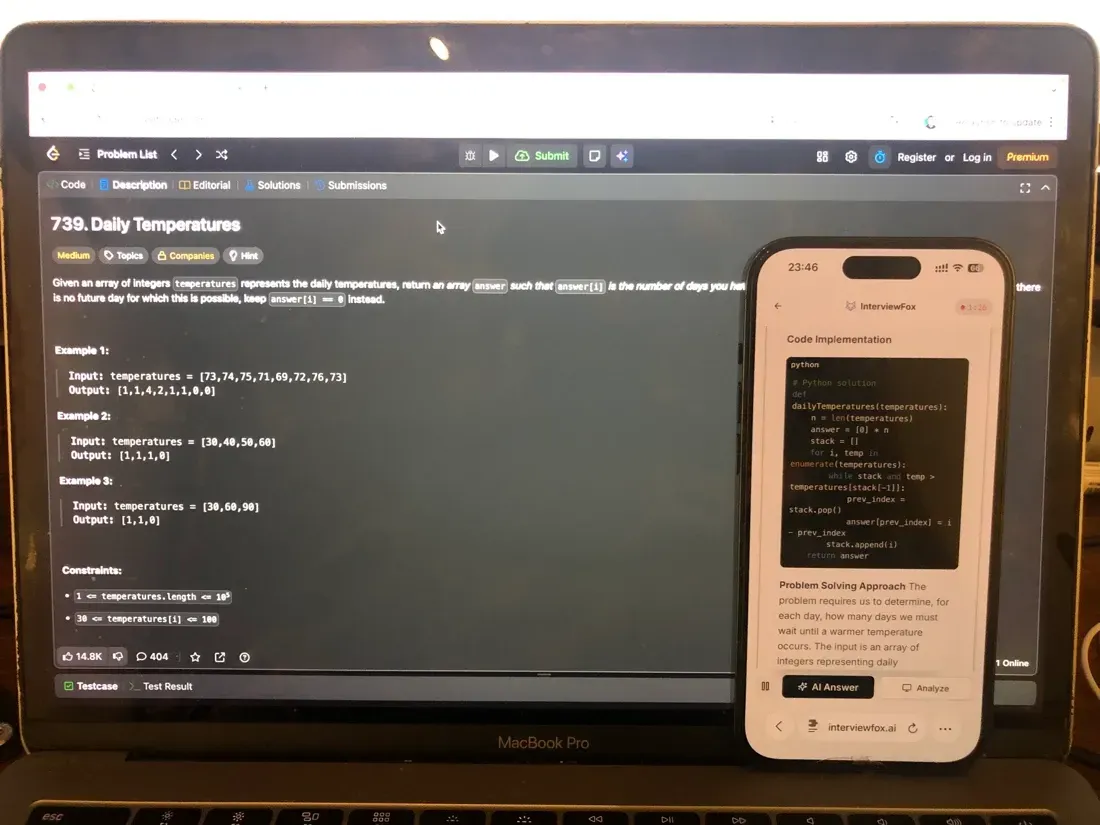
Software running on that computer cannot detect the dual-device mode. Place the phone near the laptop camera or within your natural forward sightline.
That position avoids the conspicuous glance caused by a poorly placed phone. A dual device AI interview helper uses that separate-device architecture.

Answers On Your Phone, Not Your Shared Screen
Skip the risky invisible-overlay tricks. Our dual-device mode keeps answers on your phone, never on the screen you're sharing or recording. Nothing for a platform or interviewer to catch, because there's nothing on the shared screen to find.
Get started. It's freeLoved by 100,000+ candidates
What to do before a camera-enabled Codility test
Use the assessment invitation and setup screen as your first source of truth. They reveal which features the testing team enabled for your test.
Check the requested access
Look for camera, video, screen, or recording language before you begin. Read the disclosure before granting the browser permission.
If the flow requests full-session recording, expect screen, webcam, and microphone capture after opt-in. If it requests camera access only, do not infer every separate signal.
Prepare the required device
Use a supported desktop and browser combination when the assessment requires it. Connect a working webcam before opening the test.
If no webcam is available, switch to a suitable device or contact the test administrator. Do not assume a replacement device will satisfy every assessment mode.
Troubleshoot before the timer starts
Check browser and operating-system camera permissions. Close other applications using the webcam, then retry the setup flow.
If the camera still fails, contact the testing team. They can clarify the active configuration or available alternative.
The Prep Agent supports resume review, preparation planning, and mock-interview support through WhatsApp or SMS. It supports preparation rather than permission bypass.
Answers On Your Phone, Not Your Shared Screen
Skip the risky invisible-overlay tricks. Our dual-device mode keeps answers on your phone, never on the screen you're sharing or recording. Nothing for a platform or interviewer to catch, because there's nothing on the shared screen to find.
Get started. It's freeLoved by 100,000+ candidates
What else does Codility monitor?
Codility's camera features sit beside other integrity signals. The following coverage remains separate from the primary camera answer.
- Screen content capture can cover a selected tab, window, or full screen when enabled. Snapshot and full-recording paths have different boundaries.
- In-test behavioral events can include tab switching, copy-paste, task-description copying, short completion, and typing-pattern signals. Their availability depends on configuration.
- Post-submission code-similarity or plagiarism checks are separate from camera capture. Results are review inputs, not automatic decisions. If your question extends beyond camera capture, Codility's broader integrity model explains the wider proctoring, post-submission, and review path.
- Device Integrity for Screen is a separate Preview feature that checks for known cheating tools. Its documented scope excludes screen recording and keystroke monitoring.
FAQ
Can Codility's camera see my phone or second monitor? The fetched Codility documentation does not define that camera field of view. It also gives no explicit exclusion. Treat the answer as unknown rather than assuming visibility or safety.
How long does Codility keep camera recordings? Codility documents 30-day retention for webcam screenshots. The fetched sources do not publish a full-session video duration, so do not apply the screenshot period to video.