

You are about to take a HackerRank assessment. The question in your head is if I screenshot the problem to look it up, will anyone know? You are deciding whether that small advantage is worth the risk.
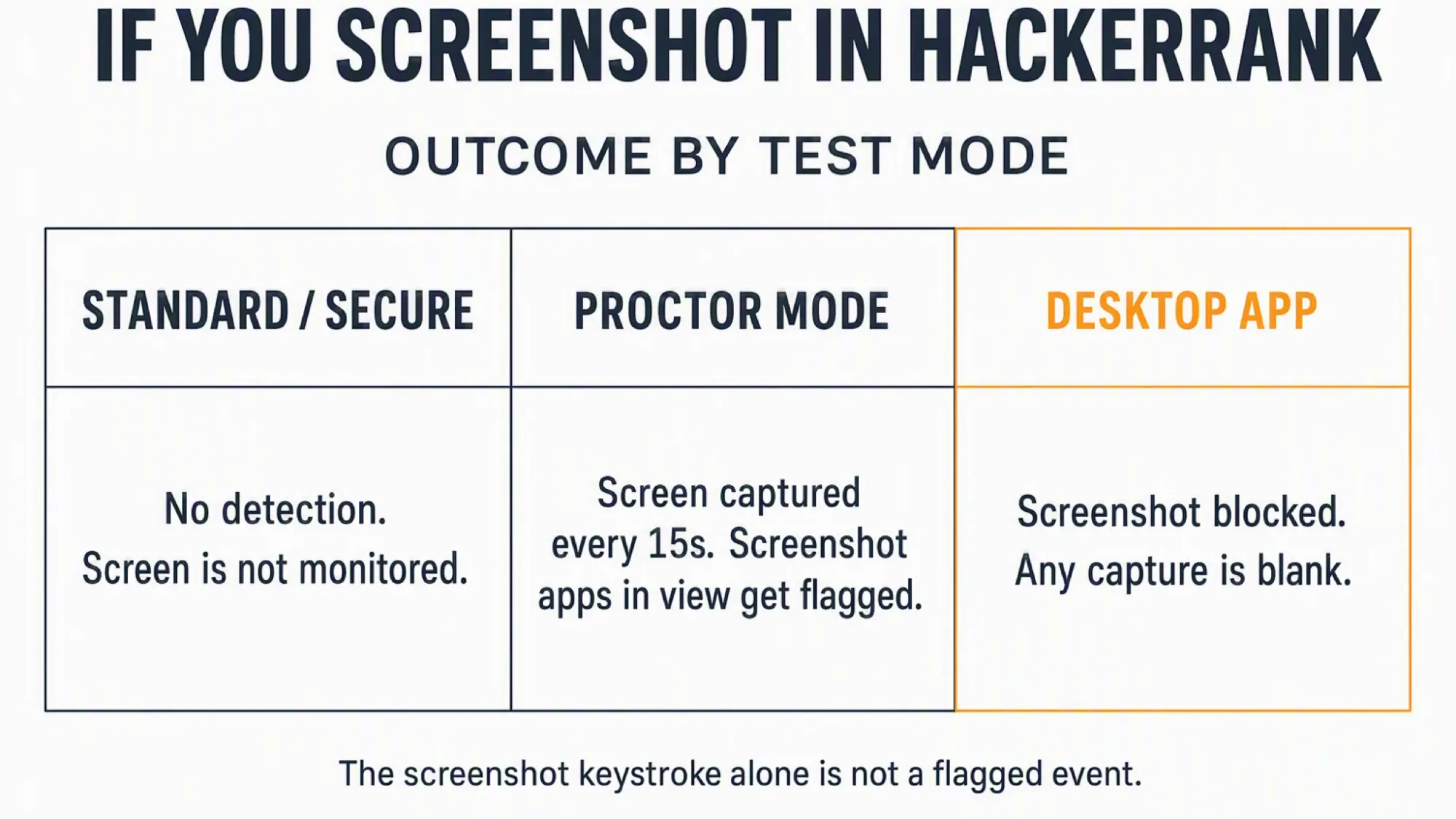
No. HackerRank does not detect screenshots in a standard test. Proctor Mode captures your screen every 15 seconds, and Desktop App Mode blocks the capture entirely.
Desktop App Mode blocks screenshots rather than just flagging them. If you force one there, the image comes out blank. A standard or Proctor test still watches your screen in other ways.
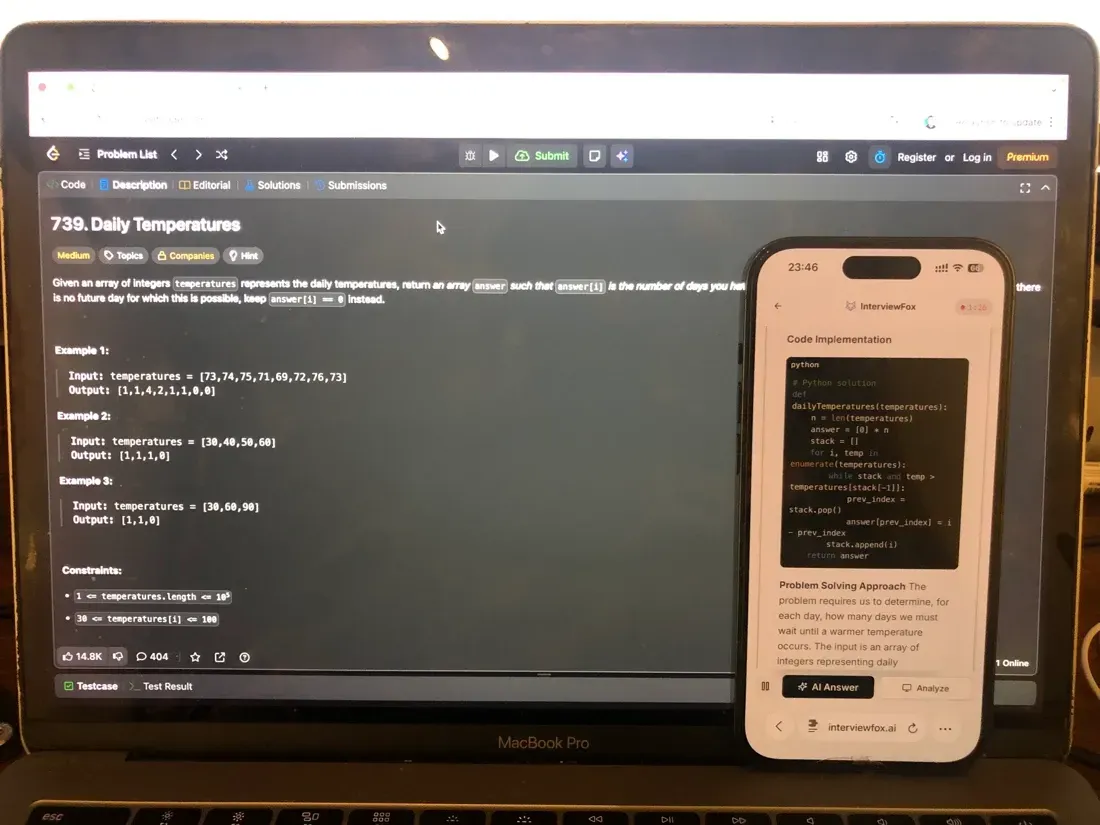
A second phone keeps your answers off HackerRank's capture. The help shows on another device, so nothing you see reaches the monitored screen. A dual device AI interview assistant works this way.
The Answer Depends on the Test Mode
HackerRank is not one fixed setup. The employer chooses how much the test watches you.
Three configurations matter for screenshots. They are Standard or Secure Mode, Proctor Mode, and Desktop App Mode.
Each one treats a screenshot differently. The sections below cover them in order.
Standard and Secure Mode Tests Do Not Watch Your Screen
Secure Mode is the lightest setting. It enforces full screen and warns on tab switches.
Copy and paste are blocked. The setting also checks for extra monitors.
Screen capture does not happen in this mode. No screenshot analysis runs for cheating tools.
In a plain browser test, HackerRank has no way to know you pressed PrintScreen. The browser cannot see that action.
Proctor Mode Captures Your Screen Every 15 Seconds
Proctor Mode is stronger. It asks you to share your entire screen before the test starts.
The platform then captures screenshots every 15 seconds. It speeds up to every 5 seconds near a violation.
A model reviews each capture. It looks for unauthorized tools and resources.
This includes screenshot or screen-recorder apps running in the background. If one appears, the system flags that screenshot.
The key point is what gets flagged. It is the app visible in the capture, not the screenshot keystroke itself.
HackerRank documents this screenshot analysis in its Proctor Mode guide. The platform names the apps, not the key press. HackerRank's Proctor Mode lists the apps it flags .
A single PrintScreen with no tool open is not a flagged event. The detection targets visible software, not the press.
Desktop App Mode Blocks Screenshots Entirely
Desktop App Mode is the strictest tier. It runs in a separate desktop application, not a browser.
It prevents you from taking screenshots during the test. If you manage to force one, the image is blank.
The app also blocks screen sharing and remote access. It closes unauthorized programs for you.
So in this mode, the question is moot. There is no capture to detect because the capture is prevented.
HackerRank lists these controls in its Desktop App Mode documentation. This is the only mode that stops the screenshot at the source. HackerRank's Desktop App Mode blocks capture .
What HackerRank's Own Screenshots Actually Catch
Now flip the angle. HackerRank does not only watch for your screenshots. It takes its own.
In Proctor and Desktop modes, the platform captures your screen to build a session replay. That replay shows every window you opened.
What looks suspicious to its model? External tools, AI coding assistants, and tutorial sites stand out.
A phone visible in your webcam also gets flagged. The model detects the device in the frame.
The real exposure is the same device. Anything on your computer screen lands in HackerRank's capture.
Why a Separate Device Stays Out of the Capture
Here is the practical takeaway. If your help lives on the same screen, HackerRank can see it.
A separate phone changes that. The answer shows on a device the platform never captures.
InterviewFox's dual-device mode is undetectable by software running on the monitored interview computer. The answer and the assistant run on the phone, so no window or process appears on the laptop.
That is the difference from a same-device overlay. An overlay would show up in the capture or get blocked by Desktop App Mode.

Answers On Your Phone, Not Your Shared Screen
Skip the risky invisible-overlay tricks. Our dual-device mode keeps answers on your phone, never on the screen you're sharing or recording. Nothing for a platform or interviewer to catch, because there's nothing on the shared screen to find.
Get started. It's freeLoved by 100,000+ candidates
A dual device AI interview helper keeps the answer on a phone, away from HackerRank's view.
What else does HackerRank monitor?
Screenshot detection is one of several integrity signals HackerRank can apply during a test. Which ones run depends on the proctoring mode your employer enables.
- Screen recording runs in Proctor Mode and Desktop App Mode. It captures your screen at intervals and scans each frame for outside tools.
- Webcam and image capture takes periodic still photographs through your camera. The permission prompt is your clearest signal that image capture is active.
- Copy-paste tracking records what you paste into the editor. It runs on every test by default, and reviewers can read the pasted lines.
- Tab switching logs when you leave the test tab. A single short exit is still recorded for human review, even if the system does not flag it.
These signals run independently and feed the same review queue. The full picture of how HackerRank detects cheating combines baseline checks, Secure Mode, and Proctor Mode surveillance.
FAQ
Does HackerRank detect the PrintScreen key?
No. HackerRank documents no detection of the screenshot keystroke in any mode. In Proctor Mode it flags screenshot apps visible in its own capture, not the press itself.
Can I screenshot just to read the question later?
In a standard test, yes, with no detection. In Proctor Mode a background tool could be flagged, and in Desktop App Mode the capture comes out blank.
What if I photograph the screen with my phone?
That is not a screenshot event. A phone in your hand may still be flagged by webcam object detection, which is a different signal.
Prepare the right way before the test. Practice the question types and review the job description so you rely on your own skill.
Answers On Your Phone, Not Your Shared Screen
Skip the risky invisible-overlay tricks. Our dual-device mode keeps answers on your phone, never on the screen you're sharing or recording. Nothing for a platform or interviewer to catch, because there's nothing on the shared screen to find.
Get started. It's freeLoved by 100,000+ candidates