Before the test opens, the real worry isn't only screen capture. Instead, it's whether any AI help you use will be exposed.
No — not by default. HackerRank does not continuously record your screen during a standard coding assessment.
The real risk is the active proctor: AI scans every screenshot for outside help, leaked solutions, or remote tools. Still, that exposure appears only when the employer enables proctoring.
Dual Device Mode is the safest setup for the monitored-computer path, because its screen shows nothing you rely on. A dual device AI interview assistant renders answers on your phone, off the recorded display.
Screenshots, not video, what HackerRank actually records
The fear most people have is a hidden camera filming their whole session. On HackerRank assessments, that is not how it works.
When screen capture is on, the system takes a screenshot of your shared screen on a fixed cadence. It feeds those images to AI models that look for outside help, leaked solutions, or remote tools. OpenAI analyzes the screenshots. Google Gemini and Amazon Rekognition scan the webcam images.
HackerRank's Proctor Mode documentation states the capture interval is every 15 seconds. It tightens to 5 seconds the moment you switch windows or exit full screen.
Those screenshots assemble into Session Replay, a timeline the recruiter can scrub. This distinction is simple. The replay uses discrete images plus webcam snapshots, synced to the event timeline. The server never stores it as a streamed or encoded video file.
That matters for two reasons. First, a flagged screenshot at a specific moment is easier to explain than a gap in a recording. Second, the analysis is automated and then handed to a human, where real judgment happens.
What the screenshots show is the screen you chose to share. Since April 2026, Proctor Mode captures the full browser screen, not just the test tab. If you share your entire screen, everything on it is in scope.
Which HackerRank modes capture your screen (and which don't)
HackerRank is not one monolithic recorder. Different modes capture different things, and the employer chooses which ones run. Here is the breakdown:
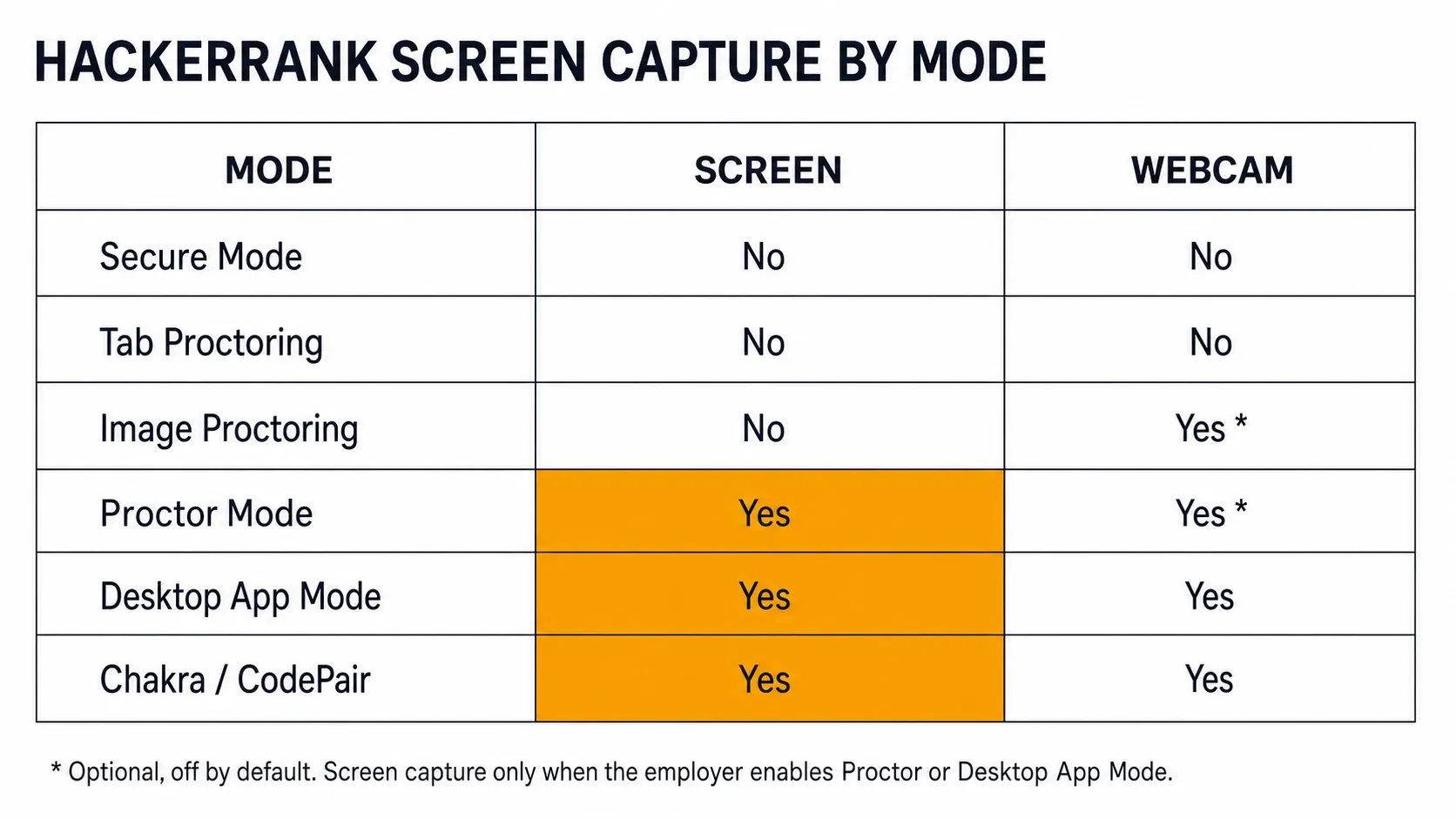
The takeaway is clear. A plain assessment with only Secure Mode or Tab Proctoring captures zero images of your screen. Screen capture turns on only with Screenshot Analysis, Proctor Mode, or Desktop App Mode. All of those are employer-enabled add-ons, not the default.
What triggers screen capture and what you'll grant
Screen capture never happens silently. Before proctoring begins, the system prompts you to grant permissions, and that prompt is your signal.
For Proctor Mode, you share your entire screen. For Image Proctoring, you grant webcam access. Desktop App Mode goes further. On macOS you must approve Screen and System Audio Recording plus Accessibility. On Windows you grant the camera.
Nothing is taken until you click allow. Proctor Mode settings lock once candidates start, and the interface shows monitoring is active.
The exposure that matters in practice is simple. Anything rendered on the screen you share is exactly what gets captured. That is why a separate device changes the equation.
InterviewFox's dual-device mode is undetectable by software on the monitored interview computer. The answer appears on your phone. No InterviewFox window, overlay, or process exists on the interview computer.
Because the two devices are independent, you can place the phone near the laptop camera. You can also keep it within your natural forward sightline. That avoids the conspicuous off-screen glance a poorly placed second device would create.
A dual device AI interview tool keeps the answer on your phone, off the monitored display.
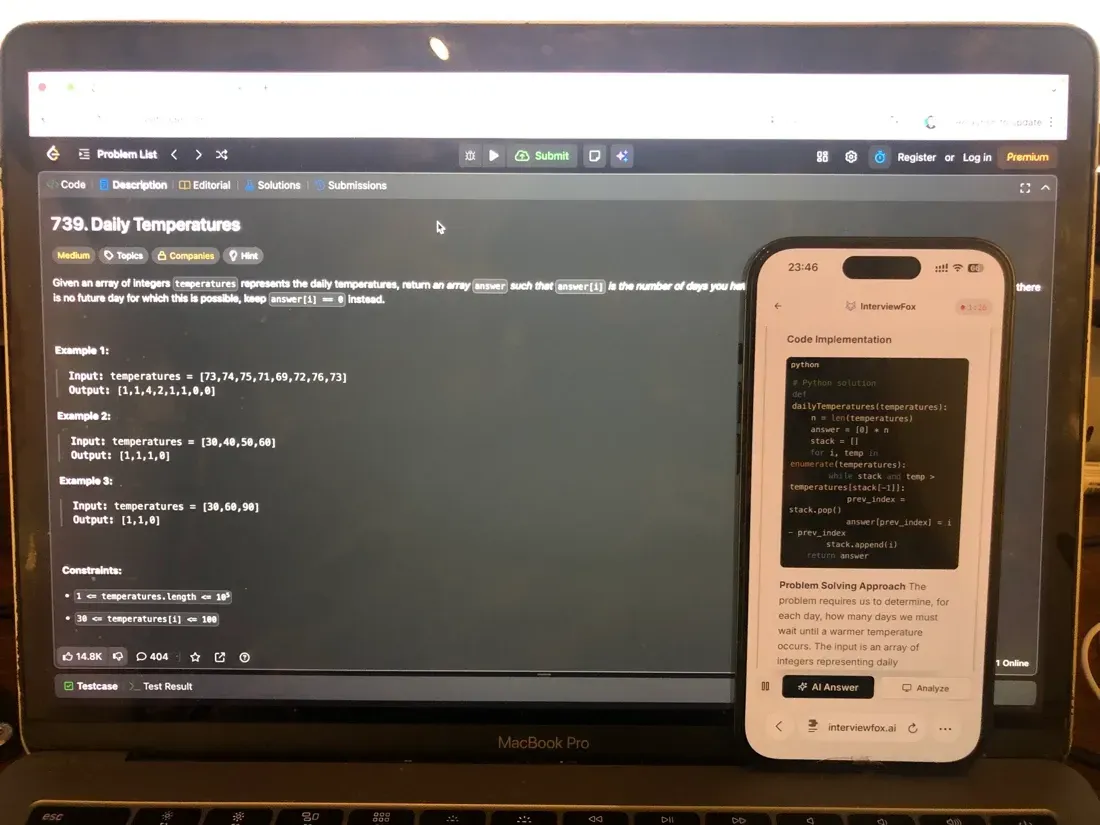

Answers On Your Phone, Not Your Shared Screen
Skip the risky invisible-overlay tricks. Our dual-device mode keeps answers on your phone, never on the screen you're sharing or recording. Nothing for a platform or interviewer to catch, because there's nothing on the shared screen to find.
Get started. It's freeLoved by 100,000+ candidates
If a camera is recording, the placement tip above keeps the setup discreet. The phone stays in view of the interview computer's camera, not in your lap or to one side.
Live interviews record differently than assessments
Do not confuse a take-home coding assessment with a live HackerRank interview. Chakra and CodePair are a separate product, and there the recording is genuine video.
It is full audio and video plus screen share. Unlike assessments, HackerRank captures every keystroke through its key-by-key replay. So the interviewer can step through your typing character by character after the call.
Chakra produces a full interview video recording with a synchronized transcript. Zoom-integrated interviews add an opt-in recording on top.
For assessments, the evidence is consistent. It is periodic screenshots turned into a replay, not continuous video. If you prepare for a CodePair or Chakra session, assume the whole conversation is on record. If you take a standard timed assessment, assume screenshots only when proctoring is enabled.
Who can see it, and how long HackerRank keeps it
Once a screenshot or replay exists, who sees it and for how long is the next worry. The answer is more reassuring than the capture itself.
HackerRank acts as a processor, not the owner of your data. The employer is the controller. That means retention follows the agreement between HackerRank and the employer. It is not a single public deadline.
HackerRank's Image Detection Notice states biometric facial data is kept for three years. It explicitly states that screen captures are not covered by that rule. It does not publish a fixed retention period for screenshots. Under GDPR you cannot download your own test data directly. You must go through the employer.
The recruiter or hiring team reviews captures, and the review is human, not automatic. Flags from proctoring or plagiarism checks go to the employer for a person to evaluate. HackerRank's documentation states the system does not auto-fail candidates.
There is no documented candidate-facing appeal. If you believe something was flagged in error, your only channel is the recruiter or hiring manager.
How to check what's monitoring your specific test
You do not need to guess. Two reliable signals tell you what is active.
- The permission prompts. If you are asked to share your screen, Screenshot Analysis or Proctor Mode is on. If you are asked for webcam access, Image Proctoring is enabled. If you installed the Desktop App and granted OS permissions, full OS lockdown is active.
- The report. Since the January 2026 release, the Session Replay button is easier to find in candidate reports, so you can see after the fact whether a replay was generated.
Before any test, ask the recruiter directly which integrity features are enabled. Many employer assessments run with only Secure Mode, capturing nothing at all.
Prepare Once, Walk In Ready
The durable fix isn't a cleverer hiding trick, it's going in prepared. Our Prep Agent reviews your resume, builds a study plan, and runs mock interviews with you over WhatsApp or SMS, so you rehearse the content before it counts.
Get started. It's freeLoved by 100,000+ candidates
Beyond monitoring, the durable edge is preparation. Know the format, practice the question types, and walk in clear on what the platform can see.
FAQ
Does HackerRank know if I take a screenshot myself?
On a standard assessment, no — the platform does not detect a candidate-initiated screenshot. Desktop App Mode is the exception: it blocks your own screenshots as part of OS lockdown. Either way, capturing the question and sharing it externally still breaks most assessment rules.
Can HackerRank record audio?
During automated assessments, no audio is captured. In live interviews, audio is part of the true video recording.
Will I be automatically rejected if I'm flagged?
No. Flags go to the employer for human review. HackerRank states the system does not auto-fail candidates. The final decision sits with the hiring team.
Does HackerRank detect phone use?
HackerRank documents no device-level detector for a separate phone. The risk to a candidate is behavioral: visible screen glances or a phone in hand during a webcam session. It is not a software ping from the interview computer.