

You are sitting inside a timed HackerRank test, weighing whether to open another tab. The real question behind the search is whether getting a little help from another tab will be noticed and recorded. You are deciding if that help is worth the risk.
Yes. HackerRank registers when your test window loses focus, and records how often and for how long. It does not record which site you opened.
Do not read that boundary as safety. A separate add-on can capture what you opened. HackerRank's 2026 docs disagree on the default. A silent test window is not proof that nothing was recorded.
The risk sits in software on the interview computer. Keeping answers on a separate device is undetectable to that software. No answer or process exists on the monitored machine. An AI interview tool running this way works on your phone.
How HackerRank Knows You Left the Test Window
Tab Proctoring is not watching your tabs. It is watching focus. HackerRank's own materials describe Tab Proctoring as monitoring browser focus events. It registers when the assessment window loses focus and when it regains it.
That focus event is the whole instrument. A tab change, a new window, an application switch, and a focus-stealing keyboard shortcut all produce the same event. Each one is counted and timed accordingly.
Switching to another application is not a quieter alternative. It is the same event, because focus has left the window either way.
The same fact sets the ceiling. In practice, the signal reads focus, and only focus. It cannot reach your other tabs, your browser history, or a second device. None of those take focus from the test window. Whatever HackerRank can record about this behavior comes from that one transition.
Whether Tab Proctoring Runs Is an Employer Setting
Whether any of this runs on your test is an employer setting. The employer picks the integrity mode per assessment. The mode, in turn, changes what happens when you leave the window. Here is the tab dimension of each one.
Tab Proctoring only records. It counts your exits and times them. It does not restrict switching, and, notably, no source documents a candidate-facing warning at this level.
Secure Mode warns and restricts. It alerts you when you try to navigate away, and it logs the attempt. It also restricts full-screen exit, which is covered below.
Proctor Mode adds screenshot analysis. On top of the Secure Mode controls, it flags tab exits over a documented threshold. It can, in addition, identify what was on screen.
Desktop App Mode blocks navigation outright. It prevents moving away from the test interface at the operating-system level, and bypass attempts are flagged and logged.
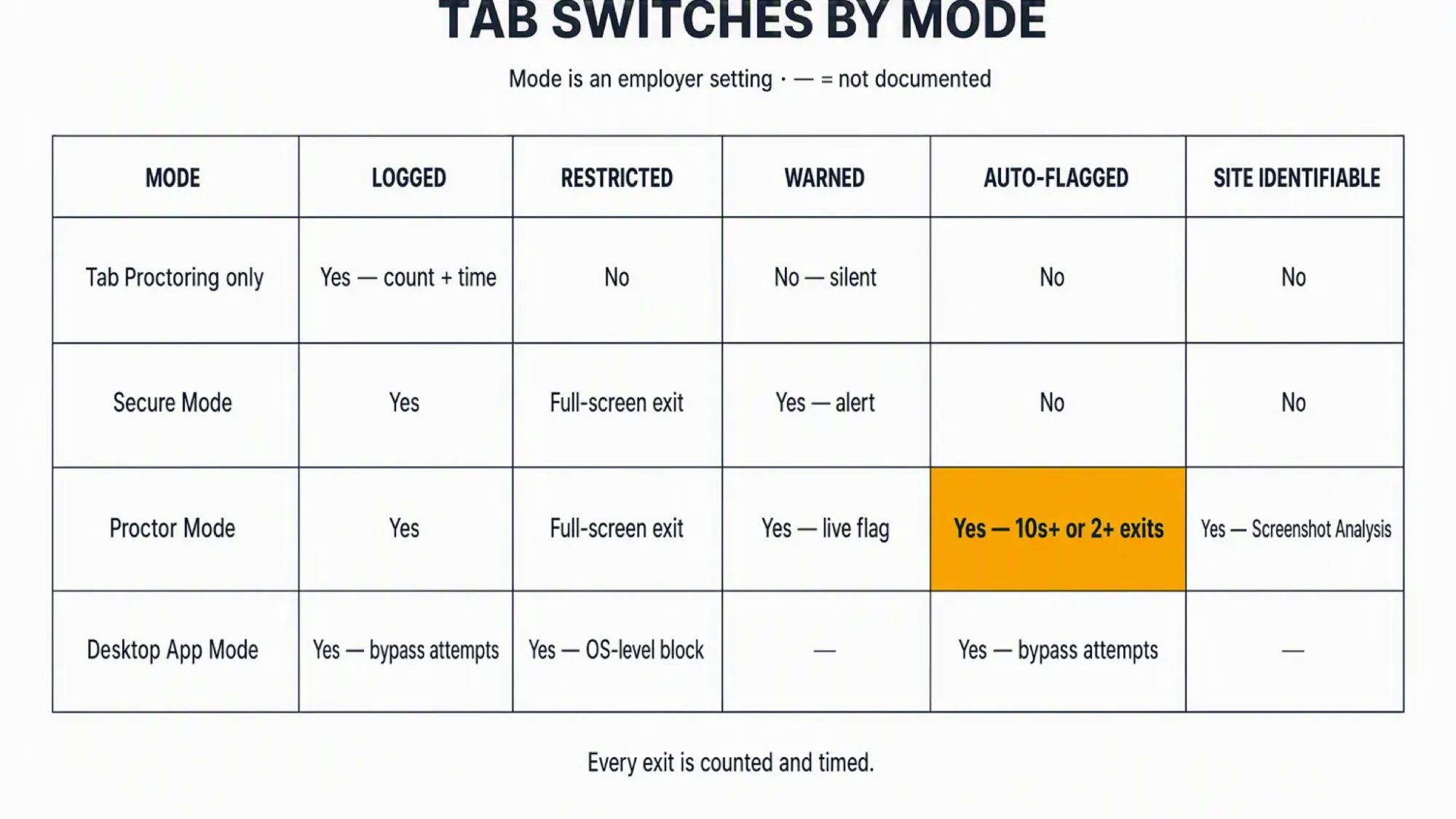
The matrix above is the branch you must resolve for your own test. The rest of this section covers the parts that are otherwise easy to get wrong.
Tab Proctoring is built-in and on by default
HackerRank's Test Integrity page now settles the question. It lists Tab Proctoring under Built-in integrity features, alongside Copy/Paste Tracking. Both, it states, require no additional setup and are provided by default.
The blog posts that once described Tab Proctoring as off by default no longer exist. Both now return 404. An older best-practices article that echoed their claim is behind a login wall. The dated, authoritative source points one way: tracking runs on every test.
What changes per mode is what happens after the switch. Secure Mode adds a candidate-facing warning. Proctor Mode adds auto-flagging at the 10-second-or-two-exit threshold. It also adds Screenshot Analysis to identify what you opened. The counting and timing, however, runs in every mode. Treat every exit as recorded.
How to tell which mode your test is using before you start
Some modes leave visible cues before the test begins. You may see a full-screen prompt, a multiple-monitor check, or a webcam permission prompt. Some tests require installing the desktop app. Each of these points to a specific mode.
Plain Tab Proctoring has no visible signature. No prompt reveals it, because it changes nothing about how the test behaves on screen. If the mode matters to you, check the integrity guidelines screen or ask the recruiter directly.
What Secure Mode Blocks and What It Only Records
Secure Mode does two different things, and they are easy to mix up. It restricts, and it records.
The restriction side blocks certain exits, such as leaving full-screen. The observation side logs the tab-switch alerts that Secure Mode warns you about. Being physically able to switch tells you nothing about whether the switch was recorded.
Will you see a warning the moment you switch?
Maybe, depending on the mode. Secure Mode warns you when you attempt to navigate away. Proctor Mode surfaces flags in real time. Plain Tab Proctoring can log in complete silence.
The load-bearing point is this. The absence of a warning, therefore, is not the absence of logging.
If no proctoring is used, is anything still collected?
Here the two readings really diverge. Under the opt-in reading, no tab log exists when Tab Proctoring is off. Under the built-in reading, it does. No source states the off-state behavior explicitly, so this remains an inference.
The safe assumption points one way. Assume the logging is active. That reading protects you if it is wrong, and the alternative protects nothing.
What the Tab-Switch Record Actually Contains
The record is smaller than you fear. It is, in fact, two numbers in a report. It is not a video of your screen, and it is not your browser history.
Where the two numbers show up
The two fields have exact names. They are Number of Window Exits and Out of Window Duration. You can verify both field names and both report surfaces on HackerRank's Tab Proctoring documentation.
Both numbers appear in two places. They show up in the candidate's Summary Report and in the recruiter's CSV export. That pair of fields is the entire base record.
Proctor Mode review adds one more layer. The Integrity Summary there includes expandable entries labeled Candidate switched tabs, with flagged time ranges and durations. At base level, the two aggregates are what exist.
What the record does not have a field for
Now the negatives, held to the same standard. There is no URL field, no page title field, and no content field. No keystrokes or screenshots exist in the base record. Gaze or eye-movement data is absent too. Eye tracking is a separately configured proctoring feature.
Those absences are in HackerRank's own field list. HackerRank documents them, and this article does not assume them.
Can Anyone See Which Site You Opened
The boundary you actually care about is here. The base record cannot tell anyone which site you opened. Seeing the site is a different feature with a different name.
What Screenshot Analysis changes, and when it is running
That feature is Proctor Mode's Screenshot Analysis. It samples the screen at regular intervals and classifies what it finds. The categories include tutorial sites, AI assistants, messaging apps, and remote-desktop software.
The condition is narrow. Screenshot Analysis runs only when an employer enables Proctor Mode. Within Proctor Mode, image analysis is on by default and can be switched off. If the add-on is off, nobody sees the site from the tab record.
If it is on, the exposure is categorically different. The screen is being sampled, and the sampled content is classified into categories, not silently ignored.
Can it read your other tabs or your browser history?
No HackerRank source claims this, and this article does not either. The focus signal reports a transition, not page contents. The browser also isolates tabs from each other, which explains why, though the explanation is not proof.
What is documented is, nonetheless, a boundary. Cross-tab content and browser history are outside the base record and outside the documented add-on.
Your phone, and a second device you are not testing on
Here is a documented blind spot. HackerRank's own materials list a phone, physical notes, off-screen assistance, and voice as things Tab Proctoring does not see. Off-device activity is off the base record.
One boundary comes with it. The tab signal, however, covers only the test window. Other proctoring features, separately enabled, are a different topic that this page does not expand into.
This is exactly where the architecture decision matters. A same-device overlay renders the answer on the monitored computer, where screenshot analysis and the focus log both live. Moving the answer to a phone removes that surface.
A dual device AI interview helper keeps the answers on the phone. No answer surface, overlay, or process exists on the monitored machine. Software on that machine cannot detect it.
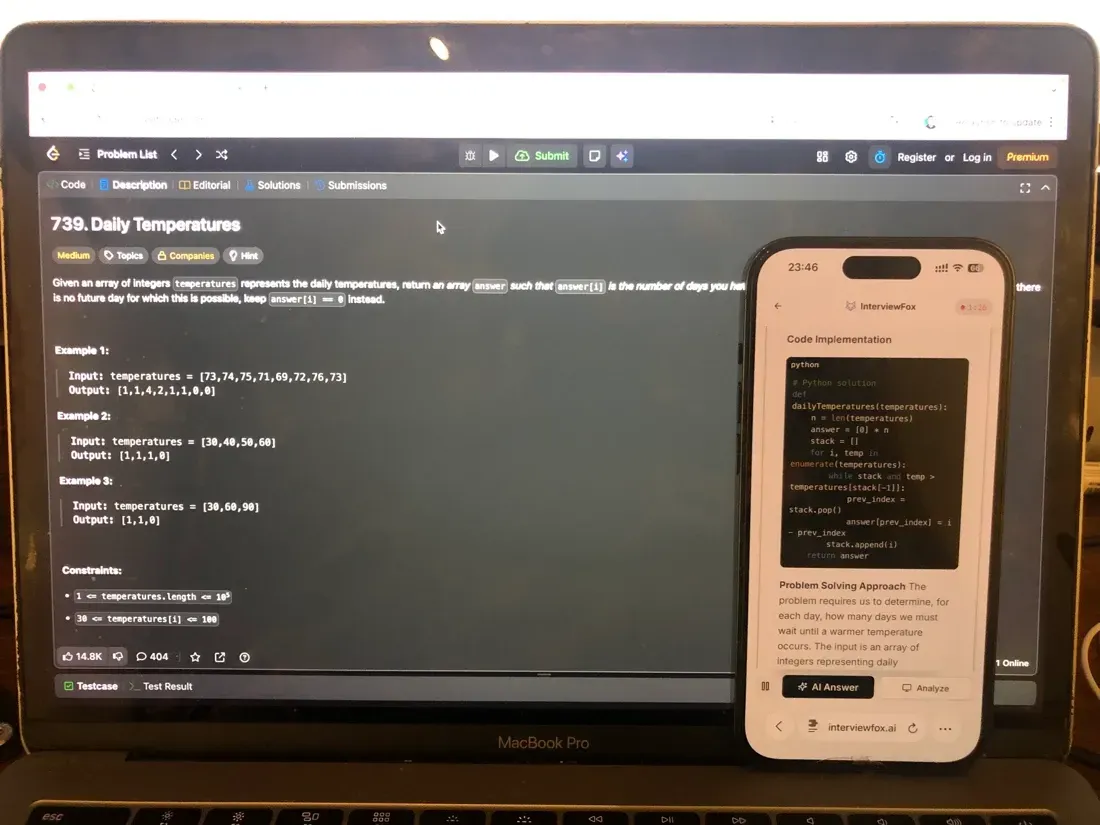
When the camera is a factor, position matters. Keep the phone close to the laptop camera or within your natural forward sightline. A phone in your lap or far to one side, however, creates the obvious downward or sideways glance. That is the glance a reviewer can notice.

Answers On Your Phone, Not Your Shared Screen
Skip the risky invisible-overlay tricks. Our dual-device mode keeps answers on your phone, never on the screen you're sharing or recording. Nothing for a platform or interviewer to catch, because there's nothing on the shared screen to find.
Get started. It's freeLoved by 100,000+ candidates
Which of Your Actions Count as Leaving the Test Window
Your real action is rarely a clean tab change. Here is how each one maps to the focus signal.
Alt-tabbing to another application instead of a browser tab
This is the correction most readers need. The trigger is focus loss, not the tab bar. Alt-tabbing to your IDE, your notes, or a terminal registers exactly the same way a browser tab change does. It is not a safer alternative, because the same event fires either way.
Using a second monitor
The monitor check is a separate control, not an entry in the tab log. It has its own pre-test gate and runs continuously. Moving your eyes to a second screen is a different question from leaving the test window. The two records stay separate.
Leaving full-screen
Full-screen exit, by contrast, is a distinct signal with its own record. Secure Mode warns you about it. In Proctor Mode, it shares the 10-second rule that applies to tab exits. That rule is covered below.
Notifications, permission pop-ups, and developer tools
Accidental focus loss counts the same as deliberate focus loss, because the mechanism does not read intent. Anything that takes focus from the test window is, as a result, what the signal reads.
One surface boundary applies. HackerRank's live interview documentation acknowledges a console or permission pop-up trigger. Opening the browser console or handling a permission pop-up can trigger the out-of-interview signal. The assessment documentation does not state this, so it stays partial and unverified for take-home tests.
Taking a break, checking email, reading your own notes
No documented tolerance or annotation distinguishes these from a deliberate lookup. The record captures behavior, not reason. Checking your email and searching for an answer produce the same two fields. No marker records why the window was left.
If your test runs in the HackerRank desktop app
The desktop app is a different regime from browser logging. It prevents navigating away from the test interface and blocks switching to other applications outright. The system flags and logs any attempt to bypass that. Those behaviors are documented for the desktop app, not inferred from the browser experience.
Is There a Threshold? 10 Seconds and Two Exits
You want a number, and one documented number exists. It is narrower than you assume, though, and three absences surround it.
The one documented rule, and the mode it belongs to
The only published number belongs to Proctor Mode review. The system flags a tab-away of 10 seconds or more, single or cumulative, or two or more window exits. You can check the filter logic on HackerRank's integrity signals documentation.
That rule is not platform-wide. It applies inside Proctor Mode, and no equivalent is published for any other mode. The same 10-second rule also applies to full-screen exit.
Will one quick switch get you flagged?
This is the one bounded reassurance on this page, and it stays inside Proctor Mode. A single exit of 10 seconds or less is not flagged by the system. Three limits attach in the same breath. The record still contains the exit. It still reaches the report. A human reviewer may still read it. Outside Proctor Mode, no equivalent rule is published at all.
The 65-second figure you have seen quoted
You have probably seen a 65-second number quoted as a safe window. It is not a safe window. That figure is a median from attempts tied to plagiarism. It is used to tune code-similarity detection. It is calibration, not an allowance. One short exit does not become safe because it sits below a median measured in caught attempts.
Three things HackerRank has never published
No platform-wide behavioral threshold exists in any mode. HackerRank has never published a false-positive rate for behavioral flags. No statement describes how a reviewer weighs duration against count. Each of these is a documented absence. None of them licenses treating any exit as safe.
Who Sees the Record, and What Happens After
The chain ends with a person, not an algorithm.
What the recruiter's screen actually shows
The report has a concrete shape. A reviewer opens the Integrity Summary, rated High, Medium, or no issues. Expandable entries labeled Candidate switched tabs show flagged time ranges and durations. The CSV export with the two numbers sits right there too.
Does a tab switch decide anything on its own?
No. A signal is read as part of a cluster, alongside other activity. The decision belongs to a human reviewer, and no documented automatic outcome follows a tab exit alone.
Does the test auto-submit, auto-fail, or shut down?
No documented auto-action exists in any mode. There is no automatic termination, auto-submit, or auto-fail from a tab exit. This is the clearest good news on the page, and it is documented, not assumed.
Will you be told, and can you explain?
You will not be notified. HackerRank does not share integrity or plagiarism results with candidates, and no candidate-facing appeal route is documented. The report belongs to the employer. Processing and disclosure follow the employer agreement, and HackerRank publishes no retention period for this data. Each absence is stated as an absence, not softened.
Across all of it, one shape repeats. A single exit rarely decides anything. The tab record matters most alongside other integrity signals, and that combination is what a reviewer weighs.
What To Do Before, During, and After the Test
Every action here traces to a mechanism covered above. None of it is about hiding anything, and none of it assumes your intent.
Is switching tabs against the rules, or only recorded?
Those are two different questions. HackerRank lists switching tabs or navigating away as malpractice in candidate-facing documentation. What is actually permitted on your test is the employer's rule, stated in the invitation or the integrity guidelines. The rules and the detection are, by design, separate things.
Before You Start, Read the Rules and the Cues
The permitted-resources statement lives in the test invitation and the integrity guidelines screen. Read it before you accept. Then scan for mode cues, the full-screen prompt, the monitor check, the permission prompt, or a desktop-app install. Plain Tab Proctoring leaves no visible signature, so if the mode matters to you, ask the recruiter directly.
During the Test, Reduce Accidental Focus Loss
Most focus loss is mechanical, not deliberate. Close the apps that can steal focus. Keep anything you are allowed to use inside the environment. Know that a break is recorded exactly like a deliberate switch. These steps reduce accidents, not detectability.
If you already switched
The record exists, and you can name exactly what is in it. Two numbers, plus whatever the threshold rule does or does not flag. You will not be notified of the outcome, and no appeal channel is documented. If you want to raise it, the recruiter is the only channel the documentation names. Nothing here invents a process that does not exist.
If your risk is more about preparation than detection, that problem is solvable. A prep agent can review your resume, build a practice plan, and run mock interviews before the real test. That work happens before the assessment, so it never touches the monitored surface.
Prepare Once, Walk In Ready
The durable fix isn't a cleverer hiding trick, it's going in prepared. Our Prep Agent reviews your resume, builds a study plan, and runs mock interviews with you over WhatsApp or SMS, so you rehearse the content before it counts.
Get started. It's freeLoved by 100,000+ candidates
What else does HackerRank monitor?
Tab proctoring is only one signal. HackerRank runs several separately configured monitoring features. Whether any are active depends on the employer's integrity mode settings.
- Screen capture and screenshot analysis. Proctor Mode and Desktop App Mode can capture your screen at regular intervals and analyze the images for unauthorized tools, tutorial sites, messaging apps, and remote desktop software. Screen recording is a separately enabled employer setting, not part of base tab logging.
- Copy-paste tracking records when and how often you paste into the editor, along with the pasted content. Large or frequent pastes, especially from external sources, can trigger flags. This runs on every test by default, separate from tab proctoring.
- Multiple monitor detection. Secure Mode, Proctor Mode, and Desktop App Mode all check for extra displays. The monitor check runs before and during the test, and flags or blocks any second screen you connect. It is a separate control with its own record, not an entry in the tab-exit log.
These are just the individual signals. The full system of how HackerRank detects cheating combines baseline checks, Secure Mode restrictions, and Proctor Mode surveillance. These form three layered defenses.
FAQ
Will a tab switch disqualify me automatically? No documented automatic disqualification exists in any mode. Within Proctor Mode, a single exit of 10 seconds or less is not flagged by the system. It is still recorded, and a human reviewer may still read it.
Does tab tracking apply in HackerRank interviews? Live interviews are a separate surface. Interview Integrity Signals produces an Out of Interview event with a timestamp and duration. It alerts the interviewer, who may ask you to share your screen. That feature is configured separately from test proctoring.
Does HackerRank record my screen when I switch? No. A tab exit is a behavioral event record, not a screen capture. Screen recording is a different feature, separately enabled by the employer.