
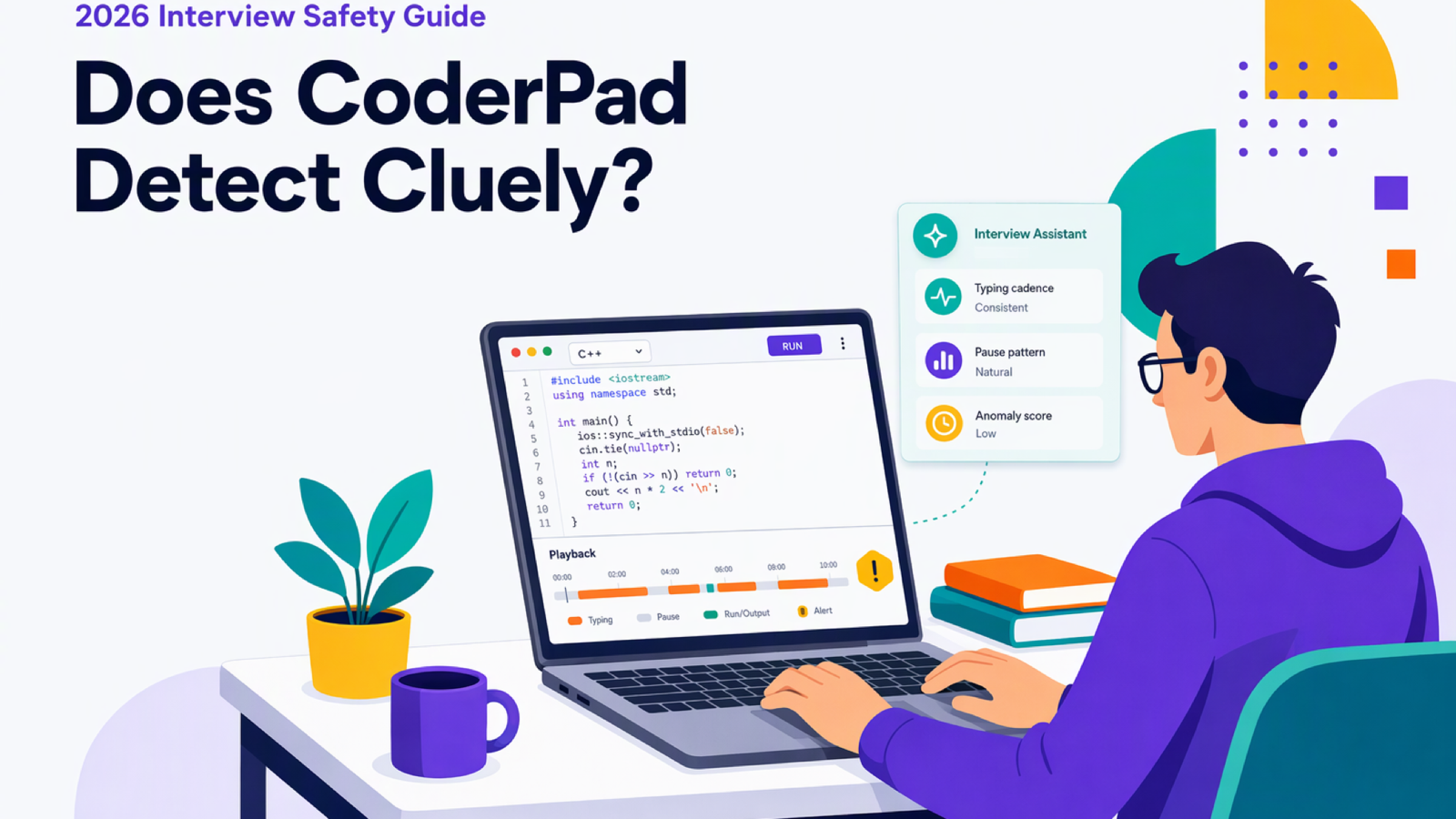
You are taking a CoderPad test and weighing whether to run Cluely for live coding help. You want outside help during the test. However, you fear proctoring flags or losing the job offer.
Yes, potentially, though not through background process scanning. CoderPad cannot scan your apps. The platform officially confirms that it does not detect AI use.
However, running Cluely on your test machine remains visible through editor signals. Code Playback logs typing speed. Clipboard tools log paste events. Window switches also record your time away.
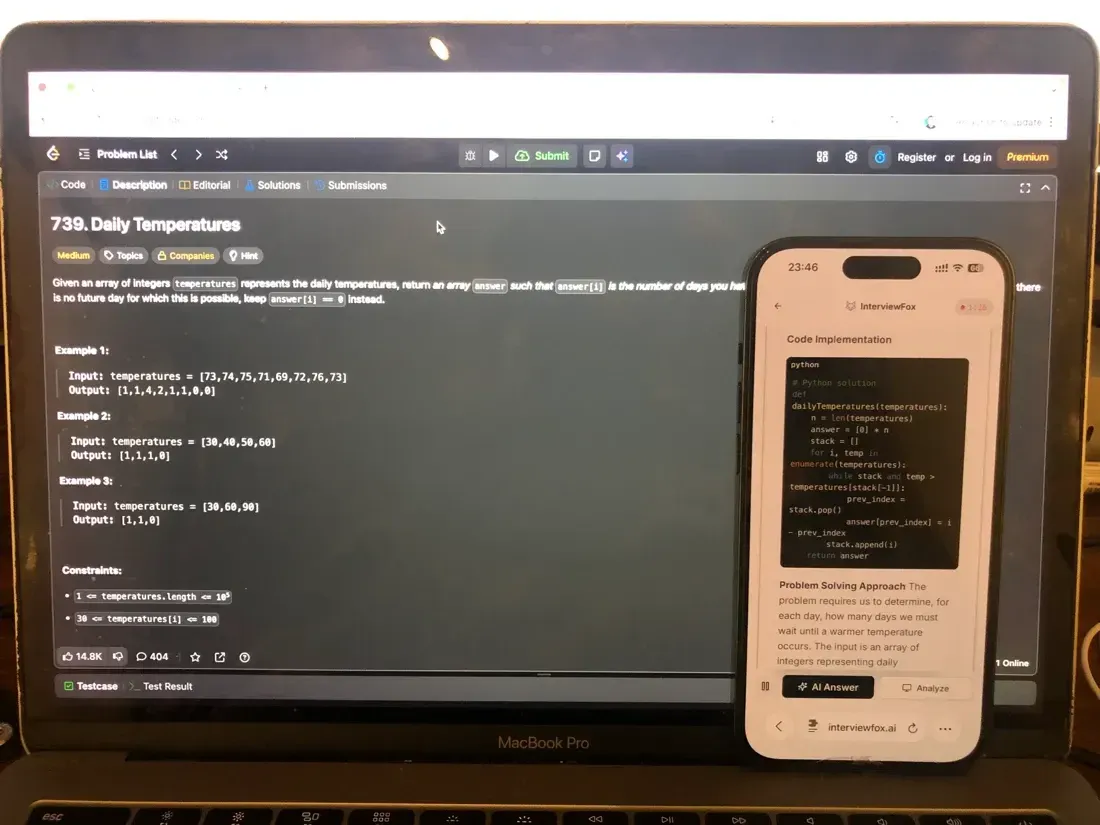
InterviewFox's dual-device mode is undetectable by software on the monitored interview computer. Answers appear on your phone instead. Therefore, an external dual device real time AI interview assistant keeps help off your computer.
Can CoderPad detect Cluely running in the background?
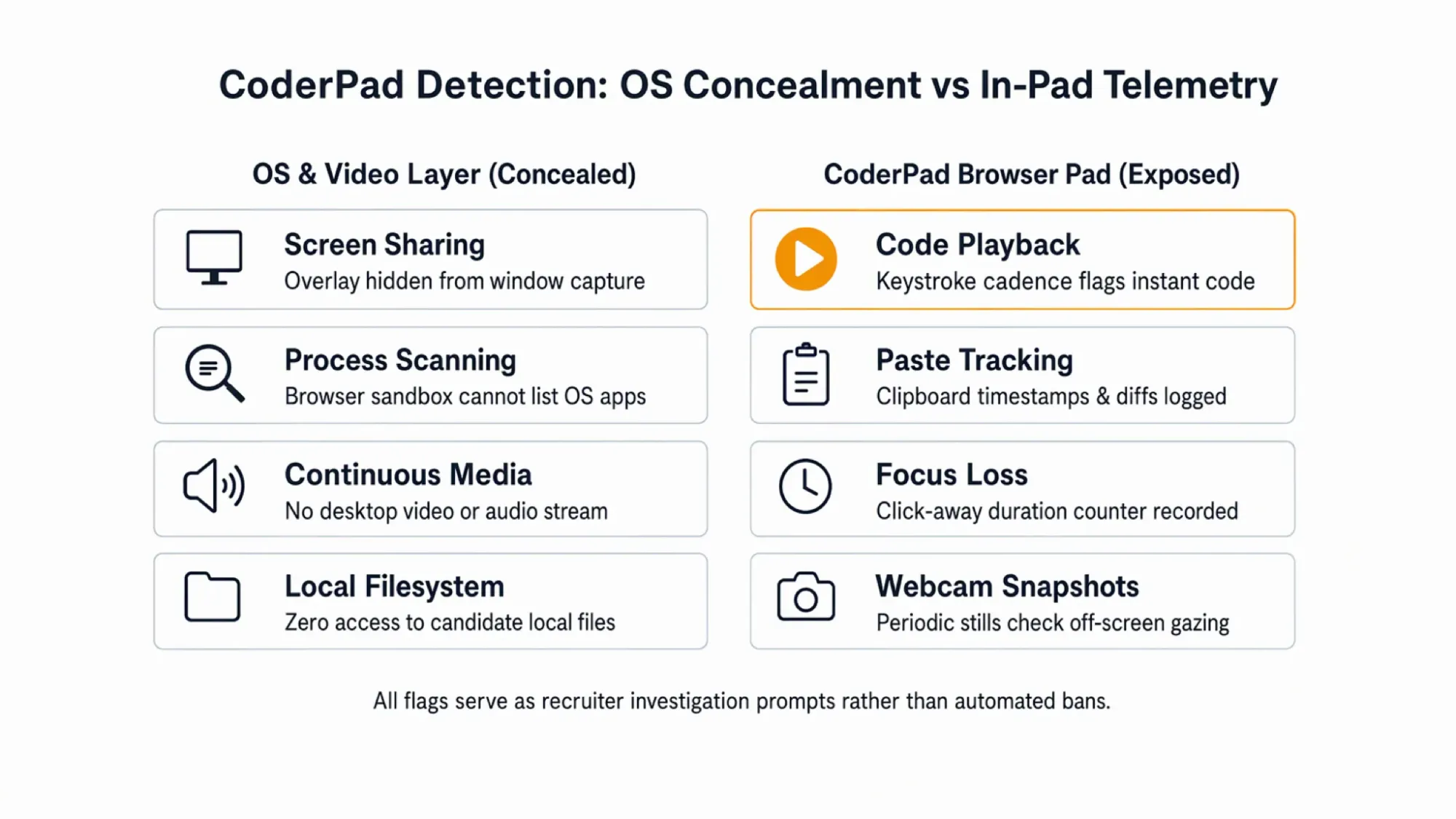
CoderPad cannot scan your local operating system. It cannot see that the Cluely desktop app is running. The platform runs entirely inside standard web browsers using Monaco Editor. Standard browser security blocks web pages from seeing local apps. Therefore, CoderPad cannot view your active desktop programs.
Cluely is a native desktop overlay. It hides its pixels from screen shares. But CoderPad has no background tools or drivers to scan your machine anyway. Furthermore, CoderPad explicitly confirms that the platform does not detect whether candidates use AI during tests. Instead, tests focus on practical code problem solving.
Candidates often wonder how this fits into broader proctoring. Learning how CoderPad detects cheating helps clarify platform test rules. Our Cluely review shows how the tool performs in real tests. While direct app scanning is absent, your editor actions still face close review.
How CoderPad's behavioral telemetry exposes copilot usage
CoderPad does not need to identify the Cluely app name. Instead, using an outside copilot leaves clear traces in the editor. These traces change how you type, paste, and switch windows.
Code Playback and keystroke cadence anomalies
CoderPad Screen records every keystroke with millisecond timestamps in its Code Playback tool. Reviewers can replay your coding session at speeds from 0.5x to 8x. The replay bar uses colors. Green marks code runs, orange shows typing, and red marks pasted text.
Real coding has an uneven pace. Developers make typos, pause to think, and test often. In contrast, copying or retyping code from Cluely creates an unnatural pattern. Candidates pause for long periods, then enter full code blocks without normal errors.
Clipboard tracking and paste diff telemetry
Monaco Editor catches all paste events in the coding pad. The system logs character counts, line diffs, and exact times. When candidates paste large blocks of code, the session logs the event for review.
In CoderPad Interview, paste actions add yellow dots to the replay bar. Hovering over a dot shows "Code pasted". Employers can also turn on paste blocking in Screen tests. In that case, pasting external code fails and creates an alert.
Window focus loss and click-away duration tracking
CoderPad tracks focus blur when the editor loses window focus. In live Interview pads, clicking outside the browser creates orange dots. Hovering over these dots shows how many seconds you spent away from the pad.
Using Cluely requires clicking its window or pressing shortcut keys. Even transparent overlays take focus away from the browser during key presses. Thus, frequent copilot use builds a clear record of off-pad time on your report.
Exposure risks in Screen versus Interview tests
Test format changes how review signals reach hiring teams. CoderPad Screen uses automated checks reviewed after test submission. In contrast, CoderPad Interview uses live interviewer alerts and direct conversation.
CoderPad Screen replay and automated proctoring
In Screen tests, employers can turn on full-screen mode. Leaving full-screen mode or switching monitors triggers an alert after ten seconds. This automated alert flags your submission for human review.
Screen tests can also turn on periodic webcam snapshots. These still photos check for missing faces or extra people. They record no video or audio. CoderPad deletes snapshots after 90 days under GDPR rules. Reviewers then check playback to confirm honest work.
CoderPad Interview live alerts and scrutiny
During live pair sessions, interviewers get real-time alerts in the pad. When you paste code or leave the tab, an alert pops up right away. CoderPad guides tell interviewers to ask candidates why they pasted code or left the IDE.
The biggest tell in live interviews is delay in speaking. Waiting for Cluely to generate answers creates awkward pauses of several seconds. When interviewers ask candidates to explain design choices, unprepared candidates struggle to defend the code.
What happens when CoderPad flags suspicious activity
CoderPad never rejects candidates on the spot when an alert fires. According to CoderPad's official cheating prevention guidelines , automated flags serve strictly as decision aids to prompt manual investigation. The system alerts employers, leaving final choices to human reviewers.
Alerts show up in four places: replay timelines, candidate lists, summary reports, and question views. A red mark highlights flagged candidates on the recruiter dashboard. Hiring teams then watch Code Playback to see if code was written step by step.
Hiring choices depend on how reviewers view your session replay. CoderPad reminds employers that paste events can reflect normal docs lookups. However, candidates who cannot explain their logic or rewrite functions during follow-up talks rarely get offers.
Everyday coding behaviors that do not get you flagged
Normal coding habits do not trigger cheating flags on CoderPad. Taking several minutes of quiet time to read prompts and plan code is completely normal. CoderPad does not flag quiet thinking at the start of a task.
Running code often is another safe habit. It creates green markers on the replay bar. Reviewers see frequent test runs as good engineering practice. Likewise, fixing typos and backspacing shows that code grew through honest effort.
CoderPad Screen does not record room audio, capture desktop video, or track eye movement. Reviews start from sharp contrasts instead. For example, twenty minutes of silence followed by a huge pasted function brings fast recruiter scrutiny.
Solid interview results also call for steady prep before test day. Practicing system design ideas and coding trade-offs with Prep Agent builds calm verbal fluency. Candidates who practice clear code walkthroughs can defend their work with ease when interviewers ask hard questions.

Answers On Your Phone, Not Your Shared Screen
Skip the risky invisible-overlay tricks. Our dual-device mode keeps answers on your phone, never on the screen you're sharing or recording. Nothing for a platform or interviewer to catch, because there's nothing on the shared screen to find.
Get started. It's freeLoved by 100,000+ candidates
What else does CoderPad monitor?
Beyond external AI copilots, CoderPad tracks several core browser and editor behaviors across its assessment ecosystem:
- Tab switching and window blur: CoderPad logs when candidates leave the editor tab. Live pads record exact click-away duration, while full-screen Screen tests alert reviewers after ten seconds.
- Keystroke playback versus full screen recording: CoderPad Screen does not record continuous desktop video. Instead, it records character-by-character Code Playback with millisecond timestamps and color-coded segments.
- Copy-paste restrictions and clipboard diffs: Monaco Editor paste listeners log line counts, character diffs, and timestamps. Employers can also disable external clipboard pasting entirely in Screen tests.
- Multiple monitors and external displays: Moving your cursor off the active window triggers focus-loss blur events. A closer look at how CoderPad monitors multiple displays shows how full-screen rules handle secondary screens.
- Webcam snapshot proctoring: Optional Screen proctoring captures periodic still snapshots analyzed for facial presence and identity consistency. Our guide on CoderPad webcam proctoring explains how snapshot storage and GDPR limits work.
- Code plagiarism and solution matching: Automated checks compare submitted solutions against public repos and past tests. This code matching stays completely separate from AI use checks.
- In-pad AI Assist logging: Employers can also turn on CoderPad's built-in AI Assist tool. All candidate prompts, completions, and edits are permanently saved to the session replay timeline.
Decoupling AI assistance from interview telemetry
Running desktop overlays on your test computer causes unavoidable leaks. Every mouse click, hotkey press, and pasted line touches system queues. Editor listeners and window blur trackers log these actions right away.
The only real fix is physical hardware separation. Running your assistant on a separate phone keeps the test computer window in continuous focus. Because no software runs on the interview machine, an external dual device AI interview copilot stays undetectable to CoderPad.
Answers On Your Phone, Not Your Shared Screen
Skip the risky invisible-overlay tricks. Our dual-device mode keeps answers on your phone, never on the screen you're sharing or recording. Nothing for a platform or interviewer to catch, because there's nothing on the shared screen to find.
Get started. It's freeLoved by 100,000+ candidates
Hardware separation also protects your typing pace in Code Playback. You can read solution approaches on your phone and type code into CoderPad by hand. This preserves natural keystroke pace, syntax fixes, and frequent test runs. Placing your phone near your laptop webcam keeps natural eye contact without looking down.
FAQ
Does CoderPad automatically disqualify candidates? No. CoderPad anti-cheat alerts serve as decision aids and review prompts for recruiters, not instant bans. Hiring teams manually review session replays before making decisions.
Can CoderPad detect ChatGPT in another browser tab? CoderPad cannot read other tabs, but it detects when you leave the test window. Switching tabs triggers blur events, logging your time away on the replay timeline.
Can CoderPad detect Cluely on a second monitor? CoderPad cannot view second screen displays unless shared on video. However, moving your mouse off the test window triggers blur events and alerts full-screen Screen reviewers after ten seconds.
Is AI coding assistance ever permitted on CoderPad? Yes, but only when employers turn on CoderPad's built-in AI Assist tool. When enabled, all prompts and generated code completions are permanently logged into the session replay.