

Weighing desktop AI help during technical evaluations is common when facing timed coding challenges. You are preparing for a CodeSignal test. You want to know if Interview Coder will trigger flags.
Yes, potentially. CodeSignal does not inspect background processes by name. Even so, proctored screen recording, editor keystroke logs, and code analysis expose its use.
Interacting with desktop overlays on the test computer leaks display pixels, steals window focus, and generates unnatural typing telemetry. Believing an overlay is invisible is a dangerous mistake.
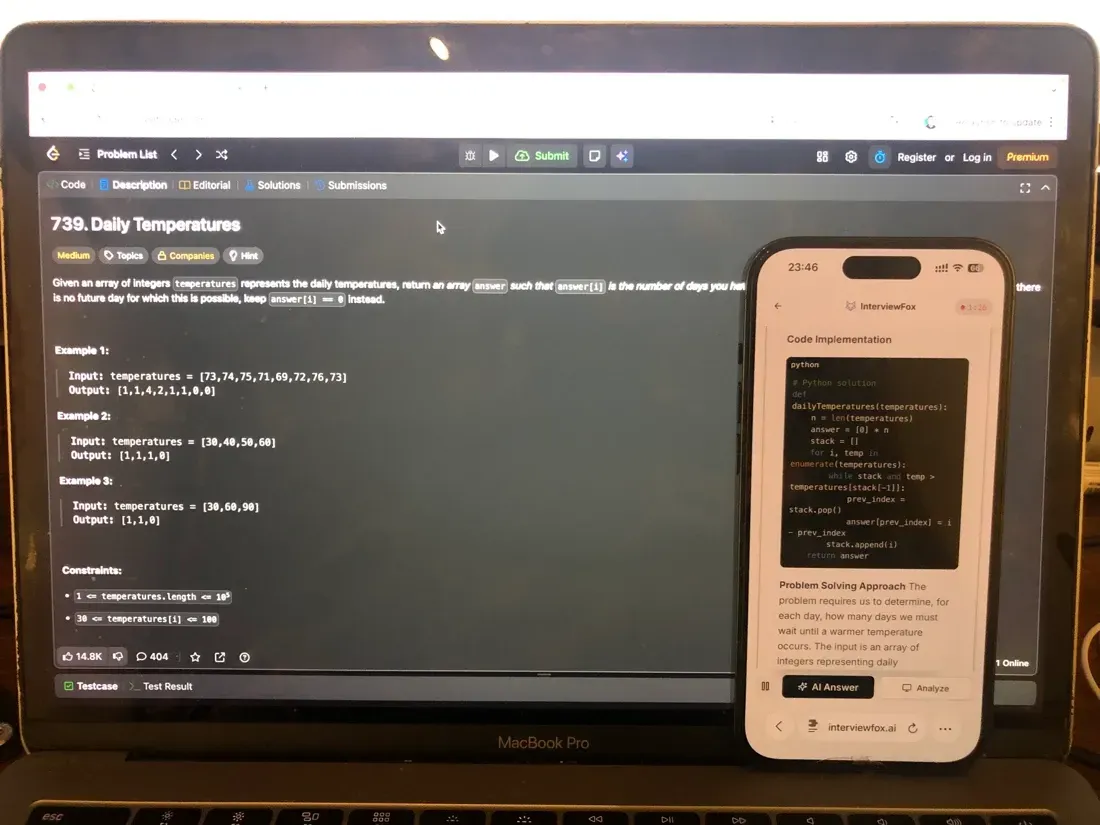
Because answers render on a separate phone, dual-device assistance is undetectable by software running on the interview machine. A dual device live AI interview helper keeps all assistance off the assessment computer.
Can CodeSignal detect Interview Coder in the background?
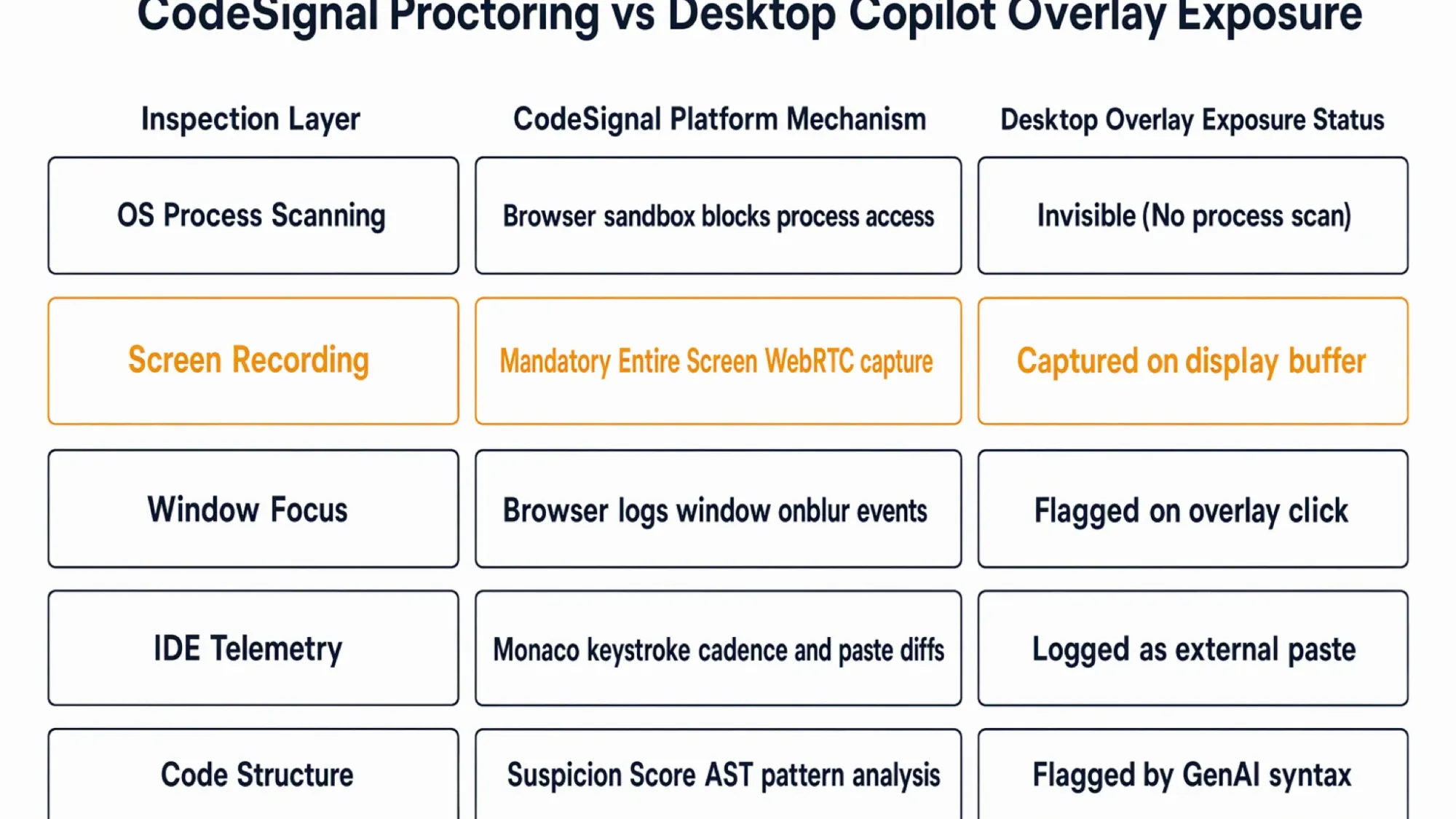
CodeSignal runs inside web browsers like Chrome, Firefox, and Edge. It operates in a browser sandbox. Because of this sandbox, CodeSignal cannot scan your system's active background processes.
The platform cannot make native desktop system calls to inspect active process tables. Thus, CodeSignal does not spot the Interview Coder app by its process name.
Interview Coder is an external desktop app. It displays AI coding help inside a floating window. If you want to check its speed and benchmark ratings, read our detailed Interview Coder review.
While process scanning is absent, that boundary only covers OS apps. To see the full picture, examine CodeSignal's platform-wide cheating detection architecture. There, visual and behavior signals work together. CodeSignal checks display buffers, typing cadence, and code syntax instead of scanning background apps.
Interview Coder overlay visibility in screen recording
When a test requires proctoring, visual exposure is the first failure point. CodeSignal uses browser WebRTC APIs to record candidate activity. It records your screen throughout the test.
Mandatory full screen WebRTC display capture
During the onboarding check, CodeSignal starts a screen share request. The platform rules require candidates to share their entire desktop display. CodeSignal rejects shares of a single tab or a single window.
Because your entire screen is recorded, any desktop window on that monitor shows up in the video. Floating assistant overlays, status indicators, and desktop alerts enter the recorded video feed.
Why window exclusion flags fail under display recording
Interview Coder uses operating system display flags to hide its overlay from capture tools. Windows offers an exclusion flag, while macOS has a non-sharing window property. These APIs can stop pixels from showing up in some screen streams. Yet window exclusion flags do not stop interaction issues.
Clicking an external overlay causes the browser to lose active window focus right away. CodeSignal logs this focus loss through standard browser focus event listeners. In session replays, proctors see mouse clicks into empty desktop space. These strange cursor clicks and sudden focus drops trigger manual proctor reviews.
How IDE telemetry and Suspicion Score expose AI code
Even if an overlay avoids visual capture, editor data exposes external help. CodeSignal's built-in editor tracks your typing habits during the test.
Keystroke playback and instant code construction
CodeSignal's web editor records keystroke data for every task. The system logs typing speed, pause times, and character build order.
Human coders write in bursts, pause to think, and fix typos often. In contrast, candidates copying AI code often show flat, uniform typing speeds. Sudden drops of complex algorithms without thought pauses trigger automated telemetry flags.
Cross-window paste logging and description copy tracking
CodeSignal logs every external paste event inside the test editor. The editor records the time, line count, and character size of pasted code. Pasting code from an outside window creates an instant integrity log.
Additionally, CodeSignal tracks whether a candidate copies the problem prompt text. Copying prompt text to feed outside AI models triggers a documented tracking alert.
Suspicion Score generative AI pattern analysis
CodeSignal checks code syntax with an automated Suspicion Score model. The model turns code into an Abstract Syntax Tree to spot syntax patterns. It compares code structures against common generative AI templates and platform archives.
CodeSignal outlined these detection pillars in its official cheating prevention disclosure. The system combines syntax tree checks, typing speed, paste logs, and similarity scores into an overall risk tier. Submissions with clear LLM syntax get higher risk flags.
Proctored Pre-Screen vs unproctored test conditions
Detection risks vary based on the test setup chosen by the employer. Companies set proctoring rules for each test.
Certified tests, like the General Coding Assessment, use strict three-stream proctoring. These tests require an active webcam, audio capture, and full desktop screen sharing. In this proctored setup, running an overlay on the test computer brings severe risk.
In contrast, custom company tests or practice sessions may skip webcam and screen recording. Even so, unproctored tests still run keystroke replay and paste logging. CodeSignal's automated Suspicion Score also checks code syntax across all tests. A test without video proctoring still spots odd typing data and AI code patterns.
What happens after CodeSignal flags an anomaly
Integrity flags do not kick you out of a test while coding. Instead, flags start an offline review after you submit.
Automated screening followed by human review
CodeSignal processes flagged sessions through a two-step review flow. First, automated checks review session events within one hour of test finish. If flags exceed normal limits, human proctors review the recorded session over one to three business days.
Proctors check if candidate actions match documented violations like outside IDE use or extra device help. This human review decides whether the test gets a Verified or Not Verified proctoring status.
What hiring teams see in candidate integrity reports
Hiring teams get a clear summary rather than raw session videos. Recruiters see your coding score and the proctoring verification choice. The report also lists your Suspicion Score tier, from None to High risk.
Recruiters can view a scrubbable code replay timeline showing typing speed and paste events. Raw webcam and screen videos stay private to CodeSignal's internal review team. CodeSignal deletes these media files within 15 days of test completion.
Everyday candidate behaviors that do not get you flagged
Knowing platform rules removes candidate worry during coding tests. CodeSignal does not flag normal coding habits that reflect honest software engineering. Candidates often worry that normal thinking pauses will trigger proctor alerts.
Silent pauses to read problem prompts or plan algorithm logic are fully expected. Also, running code often and testing custom test cases does not hurt your score. Testing edge cases and fixing broken code shows real engineering work.
Deleting text, rewriting functions, and moving code blocks are normal editor steps. You may also check official language docs to verify syntax during the test. These permitted actions are detailed in the official General Coding Assessment setup rules.
Honest practice remains the best way to solve complex coding tasks under time pressure. Candidates who want structured practice can review key topics using an interactive prep agent workflow. Strong problem-solving basics prevent the stress that leads to risky software choices on test day.

Answers On Your Phone, Not Your Shared Screen
Skip the risky invisible-overlay tricks. Our dual-device mode keeps answers on your phone, never on the screen you're sharing or recording. Nothing for a platform or interviewer to catch, because there's nothing on the shared screen to find.
Get started. It's freeLoved by 100,000+ candidates
What else does CodeSignal monitor?
Beyond desktop copilots, CodeSignal tracks other test signals. It monitors several key areas across the test session.
- Full-screen WebRTC desktop recording: Proctored assessments capture your entire desktop display to detect background applications. To explore display capture limits, see what CodeSignal's full-screen recording captures.
- Webcam video and audio proctoring: Certified sessions record continuous camera and microphone feeds to verify candidate identity. To understand video retention and room rules, review whether CodeSignal records your camera.
- In-IDE keystroke replay and typing cadence: The editor logs typing speed, character bursts, and pauses to reconstruct code creation.
- Cross-window paste tracking: The editor logs external pasted text and flags copying problem prompt descriptions.
- Browser tab switching and focus blur: The browser logs focus loss events when clicking away from the test tab.
- Code plagiarism and similarity scoring: Algorithmic checks compare submitted solutions against platform archives and public code repositories.
- Generative AI pattern detection: Automated syntax tree analysis flags machine-generated code structures to assign an overall Suspicion Score.
Decoupling interview assistance from on-machine telemetry
Desktop software tools share the operating system of the tested computer. Running an assistant on the test machine links your help directly to recorded display buffers and editor logs.
Even if an overlay hides its window pixels, clicking it triggers browser focus loss. It also leaves odd cursor marks. True safety requires physical separation between your helper tool and the test device.
A dual device AI interview copilot achieves this separation by running entirely on a secondary mobile phone. Answers display on your phone, so no application window, overlay, or background process exists on the assessment machine. InterviewFox's dual-device mode is undetectable by software running on the monitored interview computer.
Because the phone operates on its own, your assessment computer generates clean, unflagged browser session logs. Placing the phone near your laptop camera keeps screen reading within your natural forward sightline. This positioning avoids the conspicuous downward or sideways glances that draw proctoring scrutiny.
Answers On Your Phone, Not Your Shared Screen
Skip the risky invisible-overlay tricks. Our dual-device mode keeps answers on your phone, never on the screen you're sharing or recording. Nothing for a platform or interviewer to catch, because there's nothing on the shared screen to find.
Get started. It's freeLoved by 100,000+ candidates
FAQ
Does CodeSignal disqualify you immediately? CodeSignal does not terminate tests in real time when anomalies occur. Potential integrity violations generate review flags that automated systems and human proctors evaluate after test submission.
Can CodeSignal detect apps on a second monitor? CodeSignal strictly prohibits multiple monitors during proctored assessments. Glancing repeatedly toward secondary screens triggers camera gaze flags and leads to proctoring rejection.
Does Suspicion Score run on unproctored tests? Yes. Keystroke replay, paste logging, and AST pattern analysis operate inside the web editor across all assessments. These telemetry checks run even when video proctoring is turned off.