
You are about to start a HackerRank test and wondering if you can quietly use a second monitor. The question behind it is simple: will the platform notice the extra screen and flag you?
No, not by default. Standard tests skip the check, yet Secure, Proctor, and Desktop App modes detect extra displays and force one screen.
That does not mean a second screen is safe. If your employer enabled proctoring, the monitor check runs before and during the test. HackerRank then flags or blocks any extra display you connect.
The safest setup keeps answers off the monitored computer entirely. A dual device AI interview assistant shows answers on your phone. Nothing you rely on sits on the screen HackerRank inspects.
How HackerRank detects a second monitor
A browser test cannot natively see your hardware. Web standards expose display state through the Screen API instead. Chromium browsers report screen.isExtended and getScreenDetails() when a display joins an extended setup, for example.
Secure Mode and Proctor Mode run inside the browser. They ask for the monitor permission during onboarding, so the page can read display state through that API. The API therefore reports a second connected display as extended.
Desktop App Mode works differently because it runs as a native app on Windows or macOS. The app queries the operating system directly for connected displays. It also reads screen-mirroring state, not only monitor count.
The check is not a one-time scan. It runs before the test starts and again continuously. The check therefore catches any new monitor you connect during the session.
Which HackerRank modes check for multiple monitors
All three proctored modes include the multiple-monitor check. HackerRank's Proctor Mode documentation states the monitor check runs before and during the test.
Secure Mode and Proctor Mode rely on the browser permission described above. Desktop App Mode adds operating-system-level detection. The result is the same across all three: you must use a single, non-mirrored display.
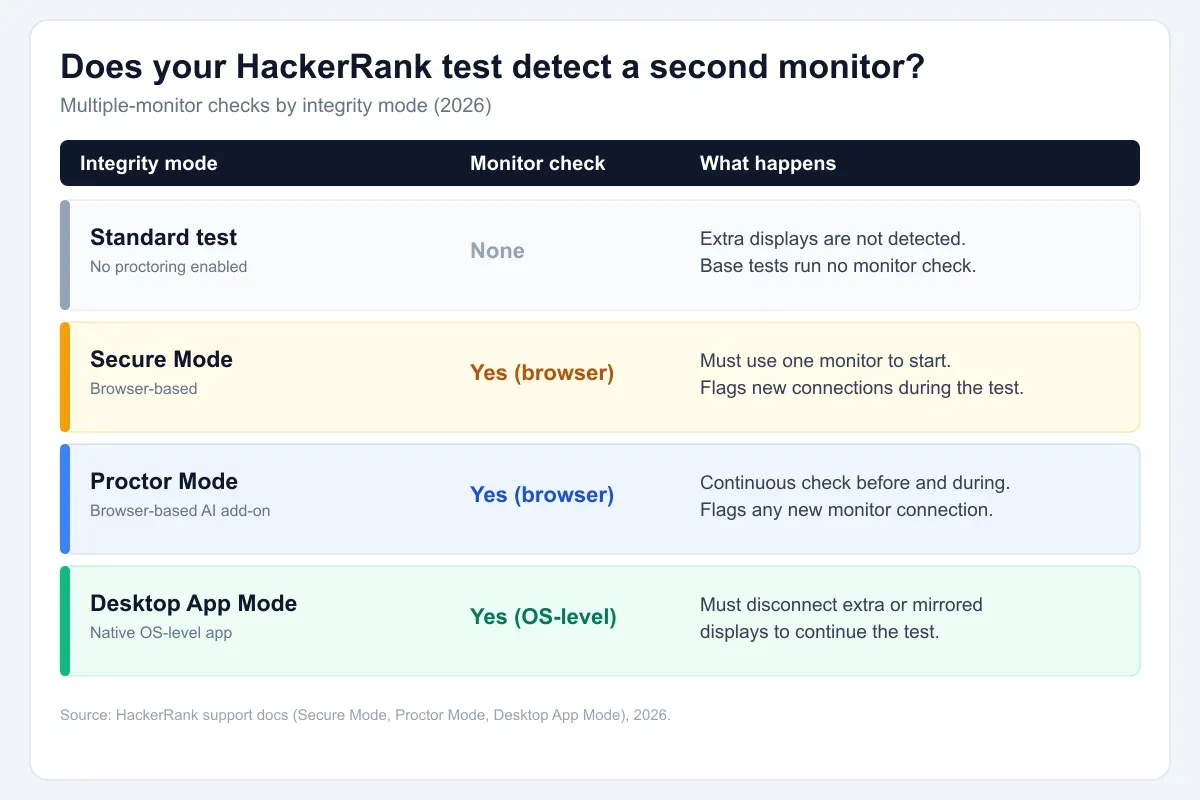
A plain test without these modes has no monitor check at all. Built-in features track only copy-paste actions and tab switches. Multiple-monitor detection is a proctored-mode capability, not a base platform behavior.
What happens if you connect a second monitor mid-test
First, the system checks your displays before the test. Therefore, you can start only if one monitor is connected. The Secure Mode help page confirms this single-monitor requirement.
Meanwhile, the check continues during the test. Consequently, HackerRank flags any new monitor you connect. In addition, Desktop App Mode blocks you until you disconnect the extra display.
Afterward, the system logs the event in your candidate report. A reviewer at the employer then sees the monitor flag. The platform does not auto-fail you for it.
A standard test does not check for extra monitors
This point matters because most anxiety assumes constant surveillance. However, a default HackerRank test watches almost nothing. It records no screen and checks no displays.
Only copy-paste tracking and tab proctoring send built-in signals. Both appear in the candidate report after the test. Neither involves counting monitors or scanning your hardware.
So if your invitation mentions no proctoring, you can assume the platform is blind to display setup. Ask the recruiter to confirm which modes are enabled.
Screen mirroring and remote access are blocked too
Desktop App Mode treats mirroring like a second monitor. It checks for a duplicated display during onboarding and again while you work. You must disconnect mirroring to continue the test.
The app also blocks remote access and screenshots. It prevents screen sharing and remote desktop tools. If you try, the screen goes blank rather than broadcasting.
These controls exist only in Desktop App Mode. Secure Mode and Proctor Mode do not block remote access at the system level. They flag it through screenshot analysis instead.
The screen HackerRank can see is the real exposure
The monitor count is only one signal. Detection reviews whatever is on the screen you share. Anything on that surface is what the system inspects.
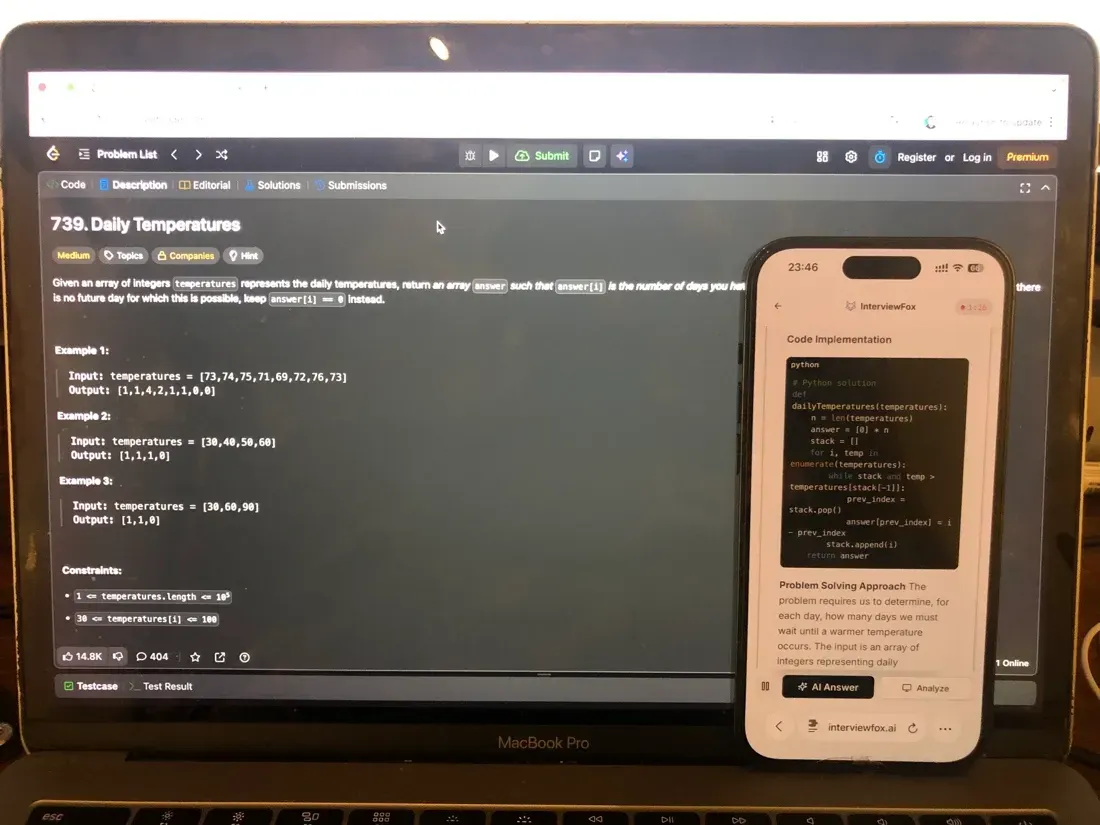
That is why the device boundary matters more than the monitor count. InterviewFox's dual-device mode is undetectable by software running on the monitored interview computer. The answer appears on your phone, and no InterviewFox window, overlay, or process exists on the interview computer.

Answers On Your Phone, Not Your Shared Screen
Skip the risky invisible-overlay tricks. Our dual-device mode keeps answers on your phone, never on the screen you're sharing or recording. Nothing for a platform or interviewer to catch, because there's nothing on the shared screen to find.
Get started. It's freeLoved by 100,000+ candidates
Because the two devices are independent, you can place the phone near the laptop camera. This avoids the obvious sideways glance a second monitor would create. A dual device AI interview tool keeps your help on that separate device.
Webcam monitoring catches what a monitor check cannot
A monitor check misses a phone held below the camera. Webcam object detection fills that gap. It flags phones and tablets visible in the frame, even when partially hidden.
Gaze detection adds another layer. It studies eye and head movement for repeated looks away from the screen. HackerRank labels this a limited-availability feature and flags only high-confidence patterns.
Keep the phone within your natural forward sightline. Placing it near the camera avoids the conspicuous off-screen glance. The device stays useful without broadcasting your reading.
How to check what your specific test monitors
You do not need to guess which modes are active. The permission prompts tell you. A screen-share request means Proctor Mode or Screenshot Analysis is on.
Similarly, a webcam request means Image Proctoring is enabled. A desktop app install means full OS lockdown is active. Each prompt names the access the test will use.
Read the post-test report after finishing. Since early 2026, the Session Replay button is easier to find there. You can then see whether a monitor flag was recorded.
Answers On Your Phone, Not Your Shared Screen
Skip the risky invisible-overlay tricks. Our dual-device mode keeps answers on your phone, never on the screen you're sharing or recording. Nothing for a platform or interviewer to catch, because there's nothing on the shared screen to find.
Get started. It's freeLoved by 100,000+ candidates
Preparation beats workaround. Knowing the format and practicing the question types builds real confidence. That readiness shows regardless of how many monitors sit on your desk.
What else does HackerRank monitor?
A second display is only one signal HackerRank can watch. The same platform tracks several other behaviors, and knowing them helps you read your own test report.
- HackerRank's extra-display check sits inside a wider anti-cheating system, so how HackerRank detects cheating across its three monitoring layers explains the full model.
- The platform can also capture what is on your screen, which is why when HackerRank records your screen matters for your post-test report.
- Most standard tests still track the simplest move of all, and how HackerRank flags pasted code shows where that signal appears.
- Running the test inside a virtual machine will not hide your setup, because how HackerRank detects a VM explains the OS-level check.
- A mirrored display is treated much like a second monitor, and how HackerRank handles screen mirroring applies the same Desktop App block.
FAQ
Does a standard HackerRank test flag a second monitor?
No. Base tests have no monitor check. Built-in tracking covers only copy-paste and tab switches.
Will I be automatically rejected if a monitor is flagged?
No. Flags go to the employer for human review. HackerRank states the system does not auto-fail candidates.
Can HackerRank see my phone on a second monitor?
Not through the monitor check. Webcam object detection can flag a phone in frame. Gaze detection may note repeated off-screen looks.
Does screen mirroring count as a second monitor?
In Desktop App Mode, yes. The app checks for mirrored displays and blocks you until you disconnect them.